How to Set Up a Kid’s New Phone or Tablet Before You Gift It

A new phone or tablet is one of the most common gifts for kids, whether it’s for a birthday, the holidays or a new school year. Before you wrap it, do one more thing: set it up. While the device is still in your hands, you can create your child’s own account, turn on parental controls and lock down purchases without a negotiation at the dinner table.
This checklist takes about 30 minutes for an Android phone or tablet and works much the same way for a laptop. Where iPhone and iPad settings differ, we note them too.
Set up your child’s new phone and computer in one place. KidInspector shows apps, games, websites and blocked attempts from an Android phone or tablet, a Windows PC and a Mac in one web dashboard. Creating an account is free.
Before you start
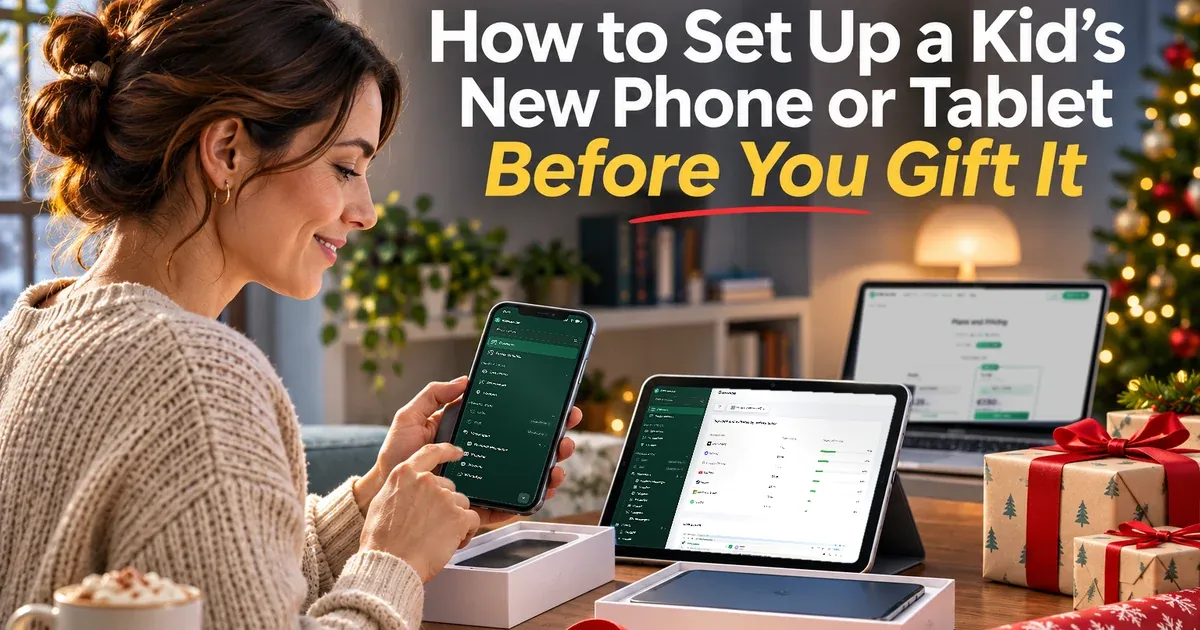
Charge the device, connect it to Wi-Fi and install all system updates: Settings › System › Software updates on most Android phones, Settings › Software update on Samsung, and Settings › General › Software Update on iPhone and iPad. Keep your own phone nearby, because several steps send approval requests to it.
Checklist: 8 things to set up before you wrap it
1. Create your child’s own account
Don’t sign the new device in with your own Google Account or Apple Account. Your saved cards, email, photos and passwords would come with it. Instead:
- Android: during setup, add a child’s account, or create one in the Google Family Link app on your phone. Kids under 13 (the age varies by country) get a supervised account that you manage from Family Link.
- iPhone and iPad: create a child account in Settings › Family on your own iPhone, then sign the new device in with it.
2. Turn on the built-in parental controls
On Android, Family Link is the base layer. On the child’s device, open Settings › Digital Wellbeing & parental controls › Parental controls (on Samsung it’s Digital Wellbeing and parental controls) and link it to your account. On iPhone and iPad, turn on Screen Time for the child account from your own iPhone and set a Screen Time passcode your child doesn’t know, so the settings can’t be changed later.
3. Lock down purchases
Most kids’ games are free to download and built to sell coins, skins and passes. Close the gap before the first download:
- Family Link: select your child in the app and go to Controls › Google Play › Purchases & download approvals. Require approval for All content.
- Google Play on a shared account: in the Play Store, tap your profile icon › Payments & subscriptions › Purchase verification and choose Always. Turn off biometric verification if your child’s fingerprint is enrolled on the device.
- Apple: turn on Ask to Buy in Settings › Family › [child’s name], and block in-app purchases in Screen Time › Apps & Websites › App Store.
- No saved card. Don’t add your card to the child’s device. A gift card gives a fixed budget instead.
4. Set content ratings and filters
In Family Link, set age ratings for apps and games on Google Play, choose which sites Chrome can open and keep SafeSearch on. For YouTube, pick a supervised experience, or YouTube Kids for younger children. On iPhone and iPad, set app, movie and website limits in Screen Time. Built-in filters miss a lot, so see our guide on how to block websites on Chrome for extra layers.
5. Plan screen time and bedtime
Decide the rules now, not after the first late night. Family Link sets daily limits and downtime, and Android’s Bedtime mode turns the screen gray at night. On Apple devices, use Downtime and App Limits. Our guide on how to check screen time on Android shows where to find the numbers later.
6. Turn on location and lost-device protection
Set a screen lock, then check that Find Hub (formerly Find My Device) is on for Android, or Find My for Apple, so a lost phone can be found, locked or erased. Family Link and Apple Family Sharing can also share your child’s location with you. Our comparison of family tracking apps covers more options.
7. Install KidInspector while the device is still in your hands
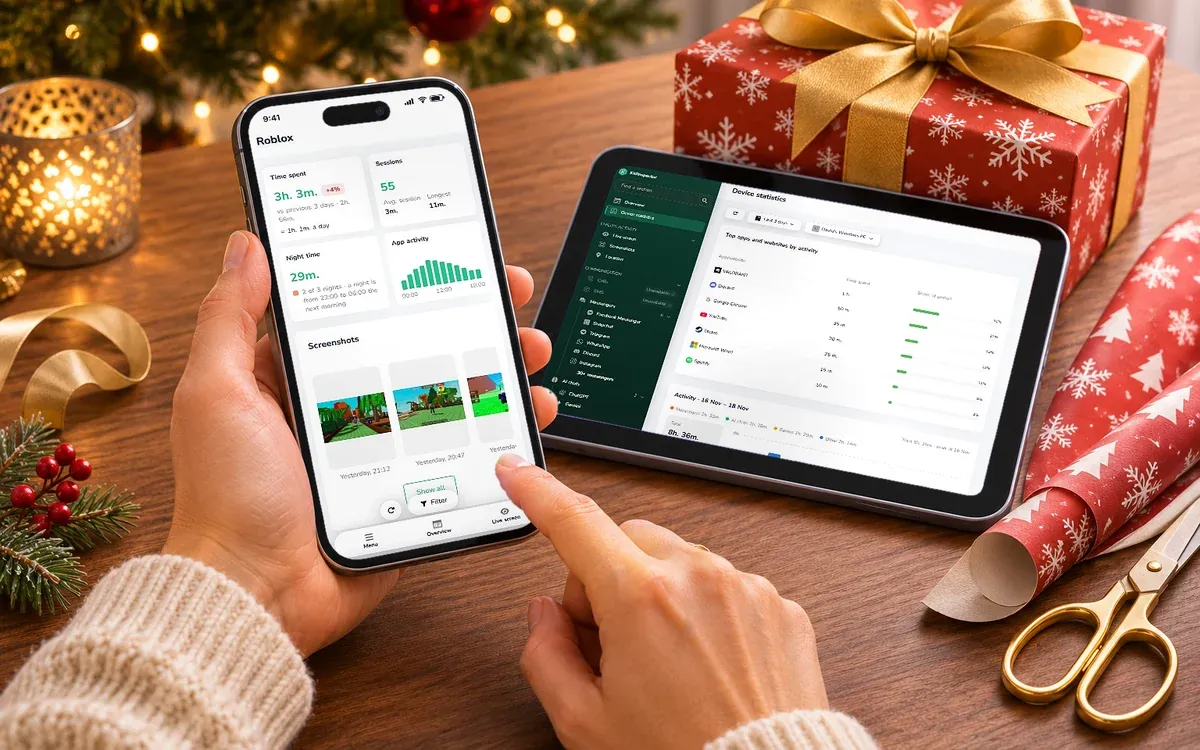
Built-in controls set the limits. KidInspector shows what actually happens on the device afterwards, in one web dashboard for an Android phone or tablet, a Windows PC and a Mac:
- which apps and games your child uses and for how long, including Roblox, Minecraft and 30+ other games;
- visited websites, plus app and website blocking with a log of every attempt to open something blocked;
- screenshots in supported apps, messengers and AI chats, with text search on Android and Mac;
- installed apps, and location history on Android and Mac.
The first installation needs the device in your hands, which is easy before it’s wrapped. KidInspector doesn’t work on iPhone or iPad and doesn’t set screen time limits, so use it together with Family Link or Screen Time. And tell your child it’s on: rules work better when they aren’t a secret.
Set it up now, before the wrapping paper. Connect your child’s new phone, tablet or laptop and see apps, games, websites and blocked attempts in one dashboard. The demo opens without sign-up.
8. Agree on the rules and hand it over
Write three to five rules together on the first day: where the phone sleeps at night, which apps need your OK, what to do if someone online asks for photos or money. Explain which controls are on and why, and promise to loosen them as your child shows they can handle more.
Quick checklist
- System updated, child’s own account created
- Family Link or Screen Time on, with a passcode only you know
- Purchase approvals on, no saved card
- App ratings, SafeSearch and site filters set
- Daily limits and bedtime set
- Screen lock and Find Hub or Find My on
- KidInspector installed and tested
- Family rules written down
FAQ
Yes. It’s easier to start with rules than to add them later, and some steps, like linking a supervised account or installing KidInspector, need the device in your hands. Once it’s unwrapped, the phone works right away, with protections already on.
No. KidInspector works on Android phones and tablets (Android 5 and newer), Windows PCs and Macs. For an iPhone or iPad, use Apple’s Screen Time and Family Sharing.
Yes. You can add supervision to your child’s existing Google Account in Family Link, turn on Screen Time for an Apple device and install KidInspector at any time. Each of these needs the device in your hands once, and teens may need to agree to supervision.