Best App Blockers for Android in 2026

The best app blockers for Android, free and paid: 5 for parents, including Google Family Link, Qustodio and KidInspector, and 5 for your own phone, like AppBlock and Digital Wellbeing. Compared on prices, free tiers and uninstall protection, plus what Android’s built-in controls can’t do.

An app blocker for Android stops an app from opening, for good or during the hours you choose. On a child’s phone, blocking is the easy part. Keeping it blocked is harder: kids open the same site in Chrome, switch to the family laptop, or delete the blocker when you’re not looking, and most app blockers never tell you.
We compared 10 app blockers for Android, free and paid: 5 for parents and 5 for your own phone, including Google Family Link, Android 17 Parental controls, Digital Wellbeing, AppBlock, Qustodio and KidInspector. We checked prices, free tiers, uninstall protection, remote control, website blocking and logs of blocked attempts on the developers’ sites and app stores.
Set app and website limits for your child from one dashboard.
Android phone, Windows PC and Mac. Creating an account is free.
What to look for in an app blocker
- Remote control. For a child’s phone, you want to change rules from your own phone, not by borrowing theirs.
- Uninstall protection. If the blocker can be deleted in two taps, it isn’t blocking anything. Look for a PIN, device admin lock or parent approval to remove it.
- Schedules and limits. Blocking “always” is rarely what you want. Good blockers combine schedules (school, bedtime) with daily limits per app. Not sure where to start? First check screen time on Android to see which apps take the most time.
- Websites too. Blocking the YouTube or Instagram app is pointless if the same site opens in Chrome. See how to block websites on Chrome.
- A log of attempts. Seeing which blocked apps someone tried to open tells you where the real pull is, and whether the rules need a conversation.
- Price and free tier. Several blockers have a usable free tier with limits on how many apps you can block.
Best app blockers for Android
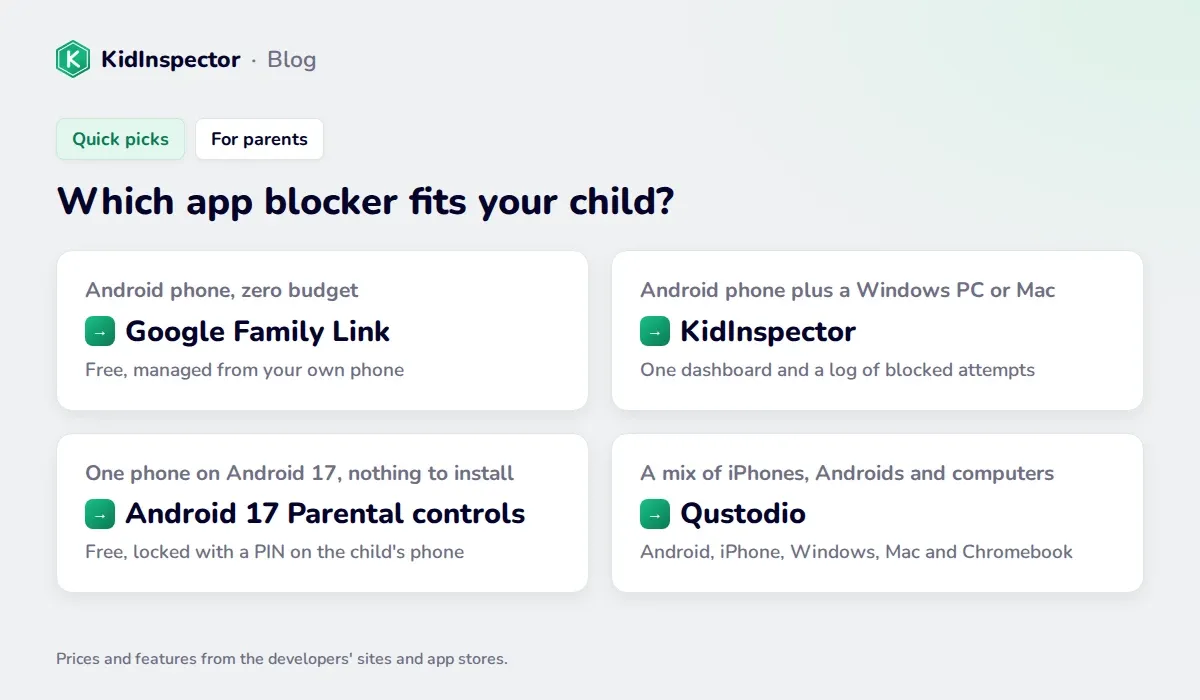
Five picks for a child’s phone, from free Google tools to paid parental control apps. We start with our own product, KidInspector, and say plainly who it fits and who it doesn’t.
1. KidInspector: app and website blocking with an attempts log
Best for: parents whose kids use an Android phone and a Windows PC or Mac.
KidInspector blocks apps and websites on a child’s Android phone, Windows PC and Mac, and you manage everything from one web dashboard. Its most useful feature for blocking is the log: every time your child tries to open a blocked app or site, you see what it was, when, and on which device and browser. It also shows time spent in each app, and on Android, location history and screenshots. Features vary by platform.
- Price: from $79.99/year (Single, up to 3 devices) or $89.99/year (Family, up to 10 devices), see pricing. The live demo opens without sign-up.
- Pros: phone and computer under the same rules; attempts log; websites and apps in one place.
- Cons: no iPhone support; not designed as a self-control tool for adults.
One set of rules for your child’s phone and computer.
Block apps and websites and see which blocked ones they tried to open. Creating an account is free.
2. Google Family Link: the free default for kids
Best for: kids under 13 with an Android phone, on a zero budget.
Family Link is Google’s free parental control app. From your phone (Android, iPhone or the web) you can block any app on your child’s Android device, set a time limit per app, require approval for every Play Store download, and lock the phone at bedtime. The child’s phone needs Android 7 or later.
- Price: free, no paid tier.
- Pros: remote control from your own phone; app limits and blocking need Android 7 or later on the child’s phone (Google Help); a child under 18 needs your approval to stop supervision (Google Help).
- Cons: Android and Chromebook only; no log of blocked attempts; website filtering works in Chrome, so other browsers need to be blocked as apps.
Also from Google: Google Play parental controls (Play Store › profile picture › Settings › Family › Parental controls) set an age rating for new downloads, but don’t touch apps that are already installed.
3. Android 17 Parental controls: free and built in
Best for: parents who want basic limits on one Android phone, at no cost and with nothing to install.
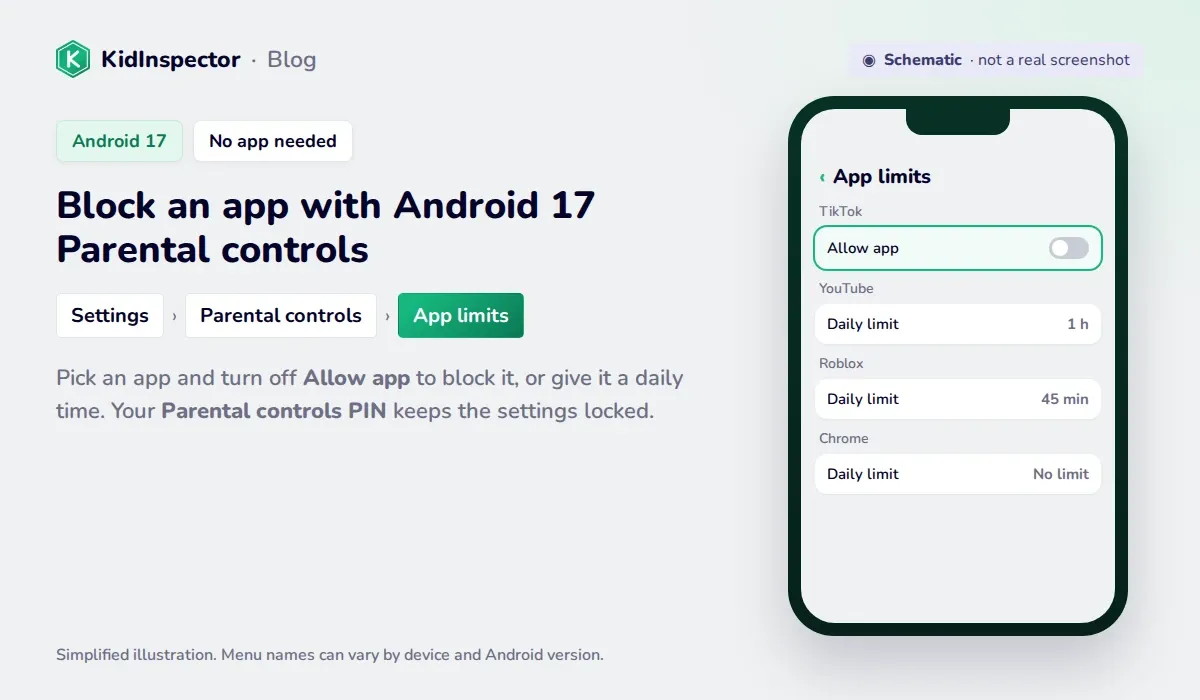
Phones updated to Android 17 have parental controls built into Settings, no Google account needed (Google). You set a PIN on your child’s phone, then block apps or give them a daily time, add a daily limit and downtime for the whole phone, and filter explicit sites in Chrome and the Google app.
How to set it up:
- Open Settings › Parental controls and set a Parental controls PIN of at least 4 digits.
- Go to App limits, pick the app, and turn off Allow app to block it completely, or set a daily time.
- Add a Daily limit for the whole phone and Downtime for the night.
- Turn on Web content filters to block explicit sites in Chrome and the Google app.
- Price: free, part of Android 17.
- Pros: nothing to install; per-app limits and downtime; protected by a PIN.
- Cons: only on phones updated to Android 17; rules are set and changed on the child’s phone, not from yours; the web filter covers explicit sites in Chrome and the Google app only; can’t be turned on with a work profile or private space, and a forgotten PIN without a recovery account means a factory reset.
4. Qustodio: parental control across every platform
Best for: families with many different devices.
Qustodio runs on Android 9+, iPhone (iOS 15+), Windows 10+, macOS, Chromebook and Kindle. Paid plans block apps or set per-app time limits, filter websites, show location and send detailed reports. On Android, the child can’t uninstall it without the parent’s permission.
- Price: Basic $59.95/year (5 devices), Complete $104.95/year (unlimited devices). The free plan covers 1 device with a web filter, safe search, restricted times and 7-day reports, but no app blocking or app limits.
- Pros: widest platform support; on Android, removing it takes the parent’s account password.
- Cons: app blocking is paid-only; one of the pricier options.
5. FamiSafe: app rules plus location
Best for: parents who want app blocking together with location alerts.
FamiSafe by Wondershare works on Android, iPhone, Windows, Mac, Kindle Fire and Chromebook (via extension). It offers app rules and limits, a web filter, live location, geofences, YouTube controls and keyword alerts in social apps. On Android, removing it requires the parent’s FamiSafe account password.
- Price: $9.99/month (5 devices), $19.99/quarter (10 devices) or $59.99/year (30 devices). The free plan covers 1 device, with app blocking, web filtering and location locked.
- Pros: broad feature set; uninstall password on Android.
- Cons: the free tier is too limited to judge it; uninstall protection is documented only for Android.
Comparison table: app blockers for parents
| App | Remote control | Uninstall protection | Websites | Free tier | Paid price |
|---|---|---|---|---|---|
| KidInspector | Yes, web dashboard | — | Yes, with attempts log | Live demo, no sign-up | From $79.99/yr for up to 3 devices; Family plan $89.99/yr for up to 10 |
| Google Family Link | Yes, from your phone | Parent approval to stop supervision until 18 | Chrome only | Fully free | Free |
| Android 17 Parental controls | No, set on the child’s phone | PIN to change settings | Explicit sites in Chrome and Google app | Fully free | Free |
| Qustodio | Yes | Parent password (Android) | Yes | 1 device, no app blocking | $59.95–$104.95/yr |
| FamiSafe | Yes | Account password (Android) | Yes | 1 device, mostly locked | $59.99/yr |
Prices are in US dollars from the developers’ sites or the US App Store. Android in-app prices can differ by country, so check the price in the app before you subscribe.
How to lock apps with a PIN or fingerprint
Locking an app is different from blocking it: the app still works, but only after a PIN, pattern or fingerprint. It’s useful for keeping a banking app or photos private when a child borrows your phone.
Samsung
- Secure Folder keeps apps and files in a separate, locked space. Search for “Secure Folder” in Settings to set it up.
- Pin app keeps one app on screen when you hand the phone to a child: turn it on in Settings › Security and privacy › Other security settings › Pin app, then open Recents, tap the app’s icon and choose Pin this app.
- Samsung Kids turns a Galaxy into a kids’ space with only the apps you allow, protected by a PIN. Add it from Quick settings.
Xiaomi, Redmi and POCO
Xiaomi has a built-in App lock: go to Settings › Apps › App lock, set a password or fingerprint and choose the apps to protect.
Google Pixel
Pixel doesn’t lock individual apps, but Private space (Android 15 and later) hides apps in a separate area behind its own lock. Find it in Settings › Security & privacy › Private space. For a child’s phone, use Pixel’s Parental controls instead.
Best app blockers for self-control on your own phone
If the phone you want to rein in is your own, you don’t need remote control or a parent dashboard. You need a blocker that’s hard to switch off in a weak moment: a strict mode that locks your rules until a timer ends, uninstall protection, and blocking for the websites behind your favorite apps.
- Want it unbreakable? AppBlock’s Strict Mode or Stay Focused.
- Want a gentle nudge for free? Digital Wellbeing, already on your phone.
- Distracted on every screen? Freedom syncs blocks across phone and computer.
AppBlock: strict mode for self-control
Best for: adults and older teens who keep breaking their own rules.
AppBlock by MobileSoft blocks apps and websites on Android and iPhone, with browser extensions for Chrome, Edge and Brave. Its Strict Mode locks your settings until a timer or schedule ends, until you enter a PIN, or until the phone is on the charger, and it can add a cooldown or require a partner’s approval before you can change anything. It can also prevent uninstalling through Android’s device admin.
- Price: free plan with limits on how many apps, sites and schedules you can block and how long Strict Mode runs. On the US App Store, Premium is $4.99/month or $29.99/year; Android prices are shown in the app.
- Pros: very hard to bypass in Strict Mode; 10M+ downloads on Google Play.
- Cons: designed for self-control, not for managing someone else’s phone remotely.
Stay Focused: blocking by keyword
Best for: adults who want fine-grained limits, including keywords.
Stay Focused by Innoxapps blocks apps, websites and keywords, with schedules, daily limits and a Strict Mode that stops you from changing the rules. Uninstall prevention uses Android’s device admin.
- Price: on iPhone in the US, $3.99/month, $9.99/quarter or $24.99/year; Android prices are shown in the app.
- Pros: keyword blocking; detailed per-app limits; 5M+ downloads on Google Play.
- Cons: self-control tool, no remote management for parents.
Digital Wellbeing: built-in timers for your own phone
Best for: adults who want a gentle nudge, at no cost.
Digital Wellbeing comes with most Android phones. App timers pause an app for the rest of the day once you hit your limit, Focus mode pauses a set of distracting apps on demand or on a schedule, and Bedtime mode turns the screen gray and silences the phone at night (Google Help).
- Price: free.
- Pros: nothing to install; clear dashboard; works on almost any Android phone.
- Cons: anyone holding the phone can turn it off; no website filter; no uninstall lock. Not a parental control.
How to set it up: on Android 15 and 16, go to Settings › Digital Wellbeing & parental controls, tap the chart, choose an app and set an App timer. When the time is up, the icon turns gray until midnight.
Lock Me Out and Freedom
Lock Me Out by TeqTic is an Android app that locks you out of chosen apps, or leaves only the lock screen for a set period. Most features are free; uninstall and tampering protection is Premium. Freedom blocks apps and sites across Mac, Windows, iPhone and Android at the same time, which suits people who get distracted on every screen. Recurring sessions and Locked Mode are Premium, from $8.99/month or $39.99/year on the US App Store.
Self-control app blockers compared
| App | Locks your own rules | Websites | Free tier | Paid price |
|---|---|---|---|---|
| AppBlock | Strict Mode | Yes | Yes, with limits | $29.99/yr (iPhone, US) |
| Stay Focused | Strict Mode | Yes, plus keywords | Yes | $24.99/yr (iPhone, US) |
| Digital Wellbeing | No | No | Fully free | Free |
| Lock Me Out | Yes; uninstall protection is Premium | Yes | Yes | Shown in app |
| Freedom | Locked Mode (Premium) | Yes | Yes, basic | $39.99/yr (iPhone, US) |
FAQ
For a child’s phone, the best free options come from Google. Family Link lets you block apps and set limits from your own phone, and Android 17 Parental controls do the same on the child’s phone itself, with nothing to install. Neither covers a Windows PC or Mac, so a child who switches to the laptop is outside the rules. KidInspector covers the phone and the computer; it’s paid, but you can explore it in the live demo without signing up. For your own phone, Digital Wellbeing is free and already installed, and AppBlock has a free plan with Strict Mode.
KidInspector is paid: from $79.99/year for up to 3 devices, or $89.99/year for up to 10 devices on the Family plan. You can explore the full dashboard in the live demo without signing up, and creating an account doesn’t require a credit card.
With Family Link, open your child’s profile, go to Screen time › Time limits › App limits, pick the app and set it to Blocked. On Android 17, use Settings › Parental controls › App limits on the child’s phone, protected by your PIN. With KidInspector, you block the app from the web dashboard, the same rules apply to your child’s Windows PC or Mac, and every attempt to open a blocked app shows up in the log.
Sometimes. Common tricks are using the website version in a browser, uninstalling the blocker or using another device. Pick a blocker with uninstall protection, block the website too, and cover every device your child uses. KidInspector blocks apps and websites together on Android, Windows and Mac and logs each attempt to open something blocked, so you can see when the rules aren’t working.
Yes. Android 17 Parental controls, Digital Wellbeing App timers, Google Play parental controls and Family Link are built in or made by Google. None of them covers a Windows PC or Mac, so if your child also uses a computer, you’ll need a parental control app that works on both.
Blocking stops the app from opening at all, or outside the times you allow. Locking lets it open after a PIN or fingerprint. Block apps on a child’s phone; lock apps on your own phone to keep them private.
Set up parental controls on your child’s devices
KidInspector covers Android, Windows and Mac: app and website blocking, screen time per app and a log of blocked attempts, managed from one web dashboard. Demo opens without sign-up.