How to Turn Off In-App Purchases on Your Kid’s Phone and Protect Your Card

Kids’ games are free to download and built to sell: Robux, V-Bucks, skins and battle passes are one tap away, and holiday sales make them even more tempting. Most surprise charges happen for a simple reason: a card is saved on the device, and nothing asks for a password.
Here’s how to turn off in-app purchases on Android, iPhone and iPad, add spending limits inside Roblox and Fortnite, protect your card and accounts, and see in KidInspector when in-game spending starts.
See where gaming and spending start. KidInspector shows games, store screens and new apps on your child’s Android phone, Windows PC or Mac in one web dashboard. Creating an account is free.
Why kids end up spending real money
- A saved card. If a phone or tablet is signed in with your account, your card is one tap away.
- No password prompt. Purchase verification set to “Every 30 minutes” or “Never”, or a child’s fingerprint enrolled on the device, lets purchases go through without you.
- Virtual currency. Prices in Robux, V-Bucks or gems hide the real amount, and bundles push kids toward bigger packs.
- Carrier billing. Some phones can charge Google Play purchases straight to the mobile bill.
- Scams. “Free Robux” and “free V-Bucks” pages exist to steal game accounts and card details.
How to turn off in-app purchases on Android
If your child has a supervised Google account
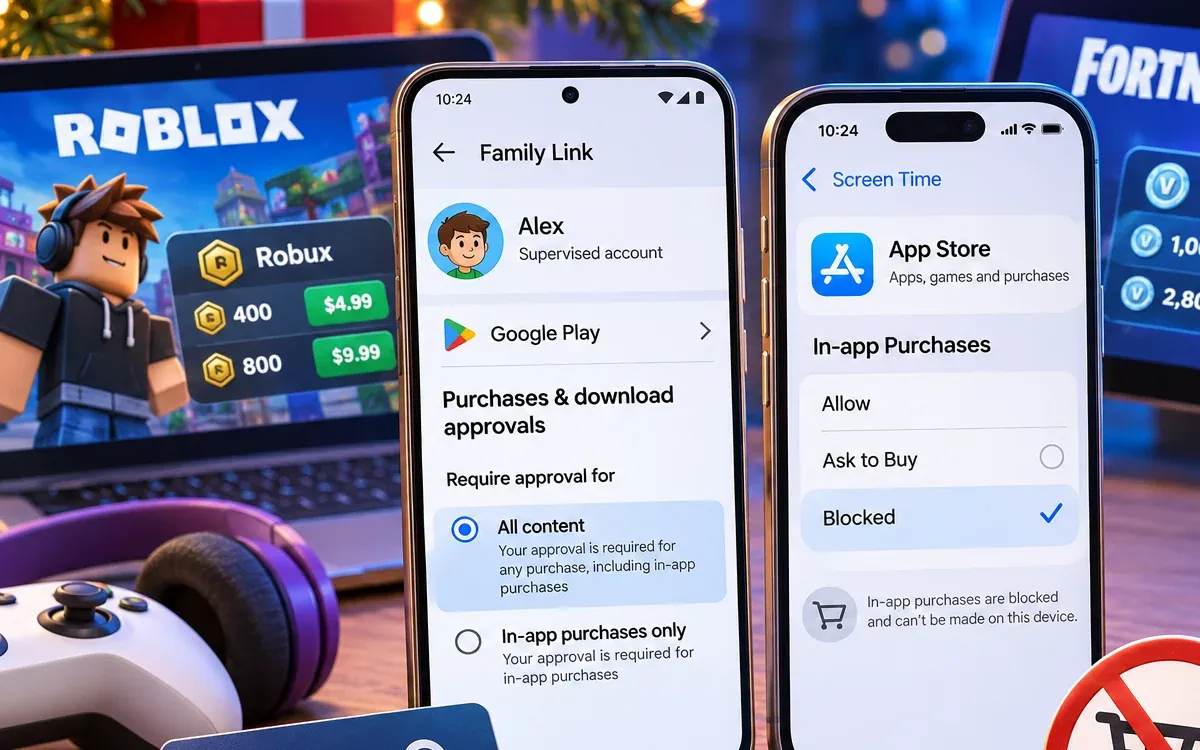
Open the Family Link app, select your child and go to Controls › Google Play › Purchases & download approvals. Under Require approval for, choose All content or In-app purchases only. Your child can still ask, and you approve or decline each request from your phone. These approvals cover purchases made through Google Play billing only, so games that take payment another way need their own limits (see below).
If the device is signed in with your account
- In the Play Store, tap your profile icon › Payments & subscriptions › Purchase verification and choose Always.
- On the same screen, turn off Biometric verification if your child’s fingerprint or face is enrolled on the device.
- Remove saved cards and carrier billing in Payments & subscriptions › Payment methods. Better still, give your child their own supervised account.
Menu names can differ slightly by region and Play Store version.
How to turn off in-app purchases on iPhone and iPad
On your child’s device, open Settings › Screen Time › Apps & Websites › App Store, tap In-app Purchases and select Blocked. On older iOS versions, the same switch is in Content & Privacy Restrictions › iTunes & App Store Purchases. If your child has their own Apple Account in your family group, also turn on Ask to Buy in Settings › Family › [child’s name], so purchases send a request to you. Protect these settings with a Screen Time passcode your child doesn’t know.
Set spending limits in Roblox and Fortnite
Store settings don’t cover every way to pay. Purchases on a game’s website, on a console or on a PC go around them, so set limits in the game account too:
- Roblox: link your own Roblox account as a parent account in your child’s Settings › Parental Controls. Then set a monthly spending limit and turn on spending notifications, so you get an email for each purchase.
- Fortnite and other Epic games: in your child’s Epic account, open Parental Controls and, under Purchasing Permissions, turn on Require a PIN for Epic Games Payments. You can also turn off Allow Paid Random Items. The PIN covers Epic payments only; purchases through PlayStation, Xbox, Nintendo, Google Play or the App Store follow those stores’ settings.
Protect your card and your accounts
- Use a gift card or a separate card. A Google Play or App Store gift card sets a fixed budget. A virtual or prepaid card with a low limit keeps your main card out of the game.
- Turn on bank alerts. A notification for every charge shows a problem on day one, not at the end of the month.
- Turn on 2-step verification for your Google or Apple account and for your child’s Roblox and Epic accounts, and don’t share passwords.
- Talk about scams. No one gives away Robux or V-Bucks. A page that asks for a login to “claim” them is trying to steal the account.
- Act fast if a charge slips through. For Google Play, request a refund from your order history; within 48 hours of the purchase this usually goes through Google Play, after that through the app’s developer. For Apple, use reportaproblem.apple.com.
How in-app spending shows up in KidInspector
KidInspector doesn’t process or block payments, so keep the store settings above. What it adds is visibility on your child’s Android phone or tablet, Windows PC or Mac, so you notice spending before the bank statement does:
- Games: time and sessions in Roblox, Minecraft and 30+ other games, so a sudden jump after a sale stands out.
- Screenshots: in supported apps and games, they can show store screens and purchase pop-ups. On Android and Mac, text search lets you look for words like “Robux”, “V-Bucks” or “gift card”.
- Visited websites: spot “free Robux” or top-up sites and block them. Every blocked attempt is logged.
- Installed apps: new games and shopping apps show up in the list.
- Incoming SMS on Android: payment confirmations sent to your child’s phone number appear in reports.
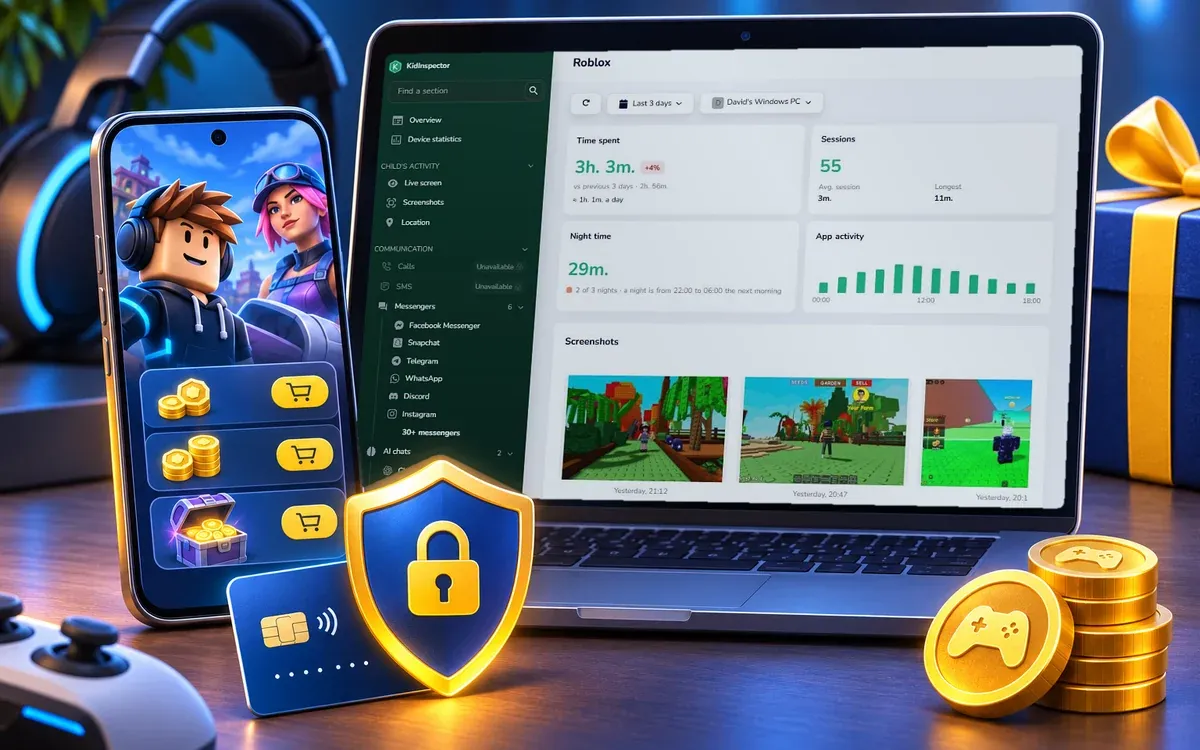
Notice in-game spending before the bank statement does. Games, screenshots, websites and new apps from your child’s phone and computer in one dashboard. The demo opens without sign-up.
Setting up a new device for the holidays? Start with our checklist on how to set up a kid’s new phone or tablet.
FAQ
There’s no single switch on a regular account. The closest option is a supervised Google account with approvals for all content in Family Link. On a shared account, set purchase verification to Always and remove saved payment methods.
The download is free, but most free games sell virtual currency, skins and passes. Google Play and the App Store mark these apps with an “In-app purchases” label on the app page.
Often, if you ask quickly. Request it from Google Play order history or at reportaproblem.apple.com and explain that a child made the purchase. Refunds aren’t guaranteed, so turn on approvals first.