How to Find Hidden Apps on Android: A Parent’s Guide for Every Brand
A hidden app is still an installed app. Here’s how to find apps hidden in the launcher, in Private space, in Samsung Secure Folder or in a fake calculator vault on any Android phone, brand by brand.
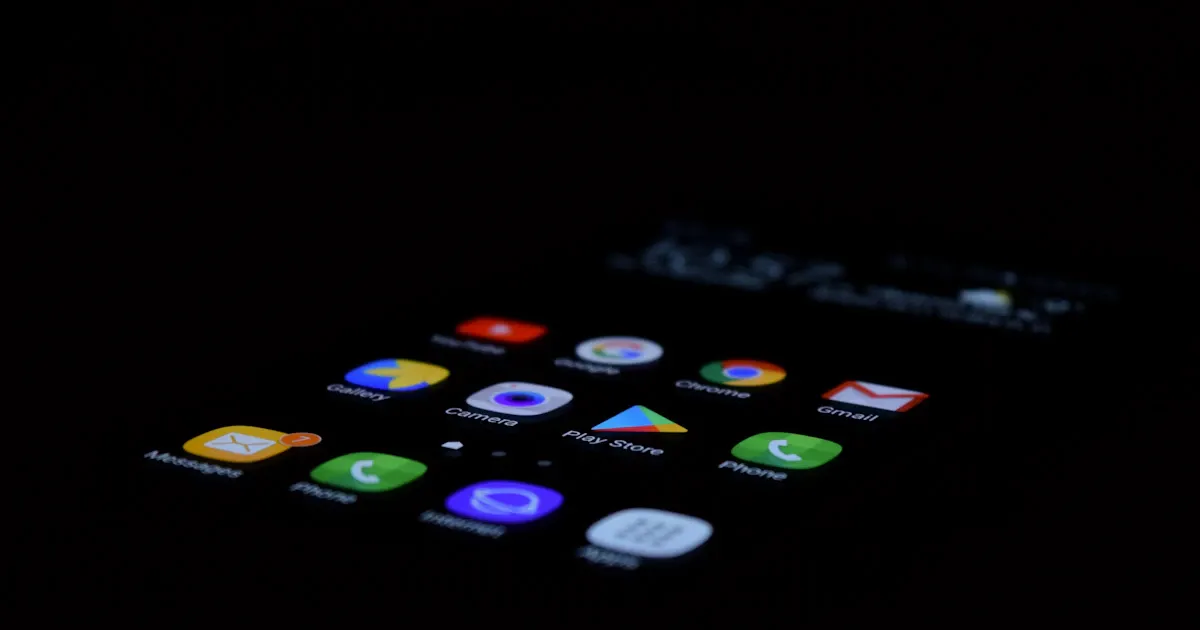
Android makes it easy to hide an app. Samsung, Xiaomi, OPPO, OnePlus and vivo all have a built-in “Hide apps” switch, Android 15 added a lockable Private space, and Google Play is full of “calculator” apps that are really password-protected vaults. If you suspect your child is using an app you don’t know about, the good news is that a hidden app is still an installed app, and it leaves traces you can find.
This guide walks you through every place an app can hide on an Android phone, brand by brand, and how to check each one. It reflects Android 15 to 17 and the major manufacturer skins as of October 2026. Menu names vary by model and software version, so if a path doesn’t match exactly, type the key word into the search bar at the top of Settings.
Why kids hide apps
Not every hidden app is a red flag. Teens hide apps for privacy from siblings, to tidy up the Home screen, or because they’re embarrassed by a game they think is “for little kids”. But hiding is also how children keep apps their parents said no to: a dating app, an anonymous chat app, a second messaging account or a vault full of photos. The goal of checking isn’t to catch your child out. It’s to know what’s on the device so you can have an honest conversation about it.
The 5-minute check
- Open Settings > Apps and scroll the full list.
- Open Google Play > profile icon > Manage apps & device > Manage.
- Look at battery usage and storage by app.
- Look for a Private space at the bottom of the app list and a Secure Folder on Samsung.
- Count the calculators. A phone has one.
Each step is explained below.
Step 1: See every installed app
Hiding an app from the Home screen removes the icon, not the app. The full list in Settings is the first place to look.
- Settings: go to Settings > Apps > See all apps (on some versions, “All apps”). Scroll slowly. Look for names you don’t recognise, generic names like “Calculator+”, “Notes” or “Tools”, and duplicates. Tap any unknown app to see its storage use and permissions (Google Pixel Help).
- Google Play, installed: open Play Store, tap the profile icon > Manage apps & device > Manage. This lists apps installed from Play.
- Google Play, history: on the same screen, tap “This device” and switch to “Not installed”. This shows apps the Google account installed before, which helps when an app was deleted after use (Google Play Help). Note that this history can be cleared.
- Apps from outside Play: an app installed from a downloaded file won’t appear in Play’s list, but it will appear in Settings > Apps. To see which apps are allowed to install other apps, go to Settings > Apps > Special app access > Install unknown apps. A browser or messaging app with this permission switched on is worth asking about.
Step 2: Check the launcher’s “Hide apps” feature
Most manufacturers let you hide icons from the Home screen and app drawer. Here is where to look on each brand.
Samsung Galaxy (One UI)
Touch and hold an empty spot on the Home screen > Settings > Hide apps on Home and Apps screens. Any app listed at the top is hidden. Samsung notes that hidden apps can still be opened by typing their name into the search bar on the Apps screen, so you can also test a suspected app name there (Samsung).
Xiaomi, Redmi and POCO (MIUI / HyperOS)
Xiaomi’s hide feature lives in the Security app (Hide apps) or under Settings > Apps > App lock, depending on the version. To view hidden apps, Xiaomi says to press and hold a blank area of the Home screen with two fingers and spread them apart (Xiaomi). On many models the hidden apps then open in a folder after the App lock passcode.
OPPO, OnePlus and realme (ColorOS, OxygenOS, realme UI)
Look for Hide apps under Settings > Privacy or Settings > Security & privacy, depending on the version. On these phones, hidden apps disappear from the Home screen, notifications and recent tasks, and are opened by typing an access code into the stock Phone dialer (OnePlus user manual). The code usually starts and ends with #, for example #1234#. If “Hide apps” asks for a privacy password you didn’t set, someone else did.
vivo (Funtouch OS / OriginOS)
vivo puts its app-hiding options under privacy and app encryption settings. The exact path changes between versions, so search Settings for “Hide” or “App encryption”.
Motorola
Motorola’s official tool is Secure folder in Moto Secure (Settings > Security & privacy > More security & privacy > Secure folder). It can use a disguised icon with a fake name, and Stealth mode can make it invisible in the app tray. If the Settings path asks for a pattern or PIN rather than offering setup, a Secure folder exists (Motorola Help).
Step 3: Look for Private space (Android 15 and later)
Private space is a separate, locked area for apps, built into Android 15 and newer. When it’s locked, its apps are hidden from the app list and from search, and with the “Hide private space when it’s locked” option, even the Private space entry at the bottom of the app list disappears (Google Android Help).
- To check: scroll to the very bottom of the app list for a Private space entry with a lock icon, or go to Settings > Security & privacy > Private space. If it asks to unlock rather than to set up, a private space exists.
- A caveat: searching may show “Private space: Tap to set up or open” even when none has been set up. Google designed it this way so others can’t tell, so that result alone proves nothing.
- Family Link blocks it: Private space can’t be used while a supervised Family Link account is signed in on the phone. If your child’s account is supervised, this hiding method isn’t available to them.
Step 4: Check for Samsung Secure Folder
Secure Folder is Samsung’s encrypted space for apps and files. It can be hidden from the Apps screen and renamed with a different icon and colour, so it may not say “Secure Folder” at all (Samsung).
- Go to Settings > Security and privacy > More security settings > Secure Folder. On older versions it’s under Biometrics and security. If it asks you to sign in rather than to set up, a Secure Folder exists.
- Swipe down with two fingers and look for a Secure Folder tile in Quick Settings. Tapping it hides or shows the folder.

Step 5: Spot vault and calculator apps
Vault apps store photos, videos and even other apps behind a PIN. Many look and work like a real calculator: type normal sums and you get normal answers, type the passcode and the vault opens. Some offer a decoy vault that opens with a second password, and some photograph whoever enters the wrong code (BGR).
These apps are popular and easy to get. On Google Play, “Vault - Hide Pics, App Lock” has more than 100 million downloads and a stealth mode that removes its icon, and “Calculator Vault - App Hider” has more than 10 million and can hide other apps inside it. Both are rated 3+ on Google Play, like other popular vault apps such as Keepsafe, so age ratings won’t stop them.
How to spot one:
- Count the calculators. If there are two, open both.
- Check the developer. On the app’s Google Play page, a stock calculator comes from Google, Samsung, Xiaomi or the phone’s maker, not from an unknown developer.
- Check storage. A calculator using hundreds of megabytes or several gigabytes is storing something else. Go to Settings > Apps > [app] > Storage & cache.
- Search Play for “vault”, “secret”, “hide” and “calculator” and compare icons with what’s on the phone.
Step 6: Read the battery and storage screens
An app that’s used every day uses battery and space, even if its icon is hidden.
- Battery: on Pixel, Settings > Battery > Battery usage > View by apps (Google). On Samsung, look under Battery or Battery and device care, depending on the version. An unfamiliar app near the top of the list is worth a closer look.
- Storage: on Pixel, Settings > Storage > Apps. On Samsung, Settings > Device care > Storage, which also lists unused apps.
One limit: apps inside a locked Private space are hidden from various system screens, so they may not show up here.
Step 7: Check device admin apps and special access
A device admin app has extra control over the phone: it can enforce lock rules, wipe the device remotely and stop itself from being uninstalled until its admin right is switched off. Parental control, anti-theft and work apps use this legitimately, but so does stalkerware. Open Settings, type “Device admin apps” into the search bar and check that you recognise every app listed (Samsung).
Also look at Settings > Apps > Special app access. Powerful permissions like Display over other apps and Install unknown apps are granted only here, without a pop-up, so an odd app with them deserves a question.
What about iPhone?
Since iOS 18, iPhone users can long-press an app and choose Hide and Require Face ID. The app moves to a Hidden folder at the bottom of the App Library, which needs Face ID, Touch ID or the passcode to open. Only downloaded apps can be hidden. For teens in Family Sharing, a parent can still see that the app was downloaded and how much time is spent in it (Apple).
How to stop hidden apps in the first place
- Turn on download approvals in Family Link: Family Link > your child > Controls > Google Play > Purchases & download approvals, and choose “All content” (Google).
- Get notified about new apps: in Family Link, open Notifications > Settings and turn on “New apps” for your child.
- Check screen time per app: an app with hours of use that you’ve never seen is easy to spot. Our guide on how to check screen time on Android shows where to look.
- Review the app list together once a month. Google itself advises parents to regularly review their child’s installed apps and permissions.
- Block apps you’ve agreed are off-limits instead of only deleting them. Our guide to the best app blockers for Android compares the options.
If you find a hidden app
Stay calm and ask before you accuse. “I noticed this app, what do you use it for?” gets a better answer than deleting it in front of your child. Many hidden apps turn out to be harmless. If it’s an app you’ve agreed isn’t allowed, talk about why and decide together what happens next. If you find signs of something serious, such as an adult contacting your child, threats or sexual images, save evidence and report it to the police rather than confronting anyone yourself.
A parental control app won’t replace that conversation, but it saves you from scrolling through Settings every week. Use it openly, with your child’s knowledge.
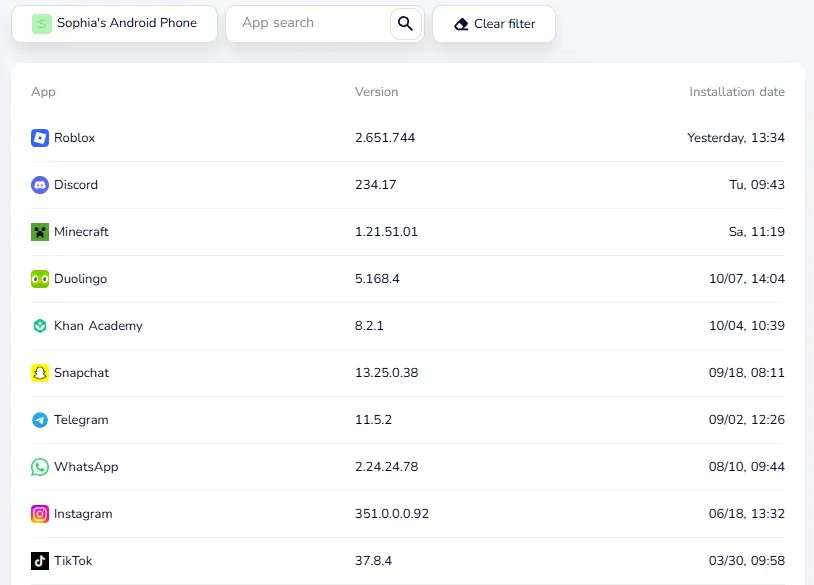
See every installed app without picking up your child’s phone. On Android, KidInspector lists the apps installed on your child’s phone with the date each one was installed, so a new app shows up even if its icon is hidden. You can block apps and see a log of blocked attempts. Use it on your own devices and your children’s devices, and tell them it’s on. It doesn’t work on iPhone.
FAQ
How do I find hidden apps on my child’s Android phone?
Check Settings > Apps > See all apps first, because hidden apps are still installed. Then check the launcher’s Hide apps setting for your phone’s brand, Private space, Samsung Secure Folder, battery and storage usage, and look for a second “calculator” that may be a vault app.
Can a hidden app be found in Settings?
Yes, apps hidden from the Home screen still appear in Settings > Apps. The main exception is apps inside a locked Private space or a Secure Folder, which you need to unlock to see.
How do I know if there is a Private space?
Go to Settings > Security & privacy > Private space. If it asks you to unlock rather than to set up, a private space exists. The “Private space” search result alone doesn’t prove anything, because it can appear even when none has been set up.
What does a vault app look like?
Often like an ordinary calculator that works normally. Signs include a second calculator on the phone, an unknown developer and an app using far more storage than a calculator needs.
Can my child hide apps if I use Family Link?
They can’t use Private space while a supervised account is signed in, and with download approvals on, they can’t install new apps from Play without your OK. Launcher hiding may still be possible, so check the app list in Family Link regularly.
Your child’s phone and computer in one dashboard. With KidInspector you see installed apps, app usage, visited websites and screenshots, depending on the platform: Android, Windows and macOS. It doesn’t work on iPhone.