
How to Block Websites on Chrome (Windows, Mac & Android)
Here's how to block websites on Chrome, platform by platform. On Windows or Mac, use a blocker extension, the hosts file, or Chrome's URLBlocklist policy. On Android, use Google Family Link or a family-safe Private DNS. Chrome has no built-in block button, so for kids, choose a method they can't easily undo.

Contents
- Can you block a website in Chrome without an extension?
- How to block websites on Chrome on Windows and Mac
- How to block websites on Chrome for Android
- How to block YouTube and other specific sites
- Which method is hardest for kids to bypass?
- Why blocks fail: Incognito, other browsers, VPN — and how to close the gaps
- Talk with your child about blocked sites
- FAQ
Can you block a website in Chrome without an extension?
Yes, you can, even though Chrome has no built-in block button. On Windows and Mac, list sites in the computer's hosts file or in Chrome's URLBlocklist policy. On Android, use Google Family Link's blocked-sites list or a family-safe Private DNS. None of these can be skipped with an Incognito window.
How to block websites on Chrome on Windows and Mac
You have four options, and you can combine them.
Before you start: Give your child a standard account, not an administrator account. On Windows, check Settings > Accounts > Other users. On a Mac, open System Settings > Users & Groups. Anyone with admin rights can undo Methods 2 and 3.
Method 1: Use a Chrome extension
A Chrome website blocker, often called a block site extension, is the quickest fix. BlockSite is a popular one; it also sells a Premium plan, so check which features are free. Its free version can block the Adult category; other categories, like Social, need Premium.
- In the Chrome Web Store, find a blocker and click Add to Chrome > Add extension.
- Open the extension's settings and add the sites to block.
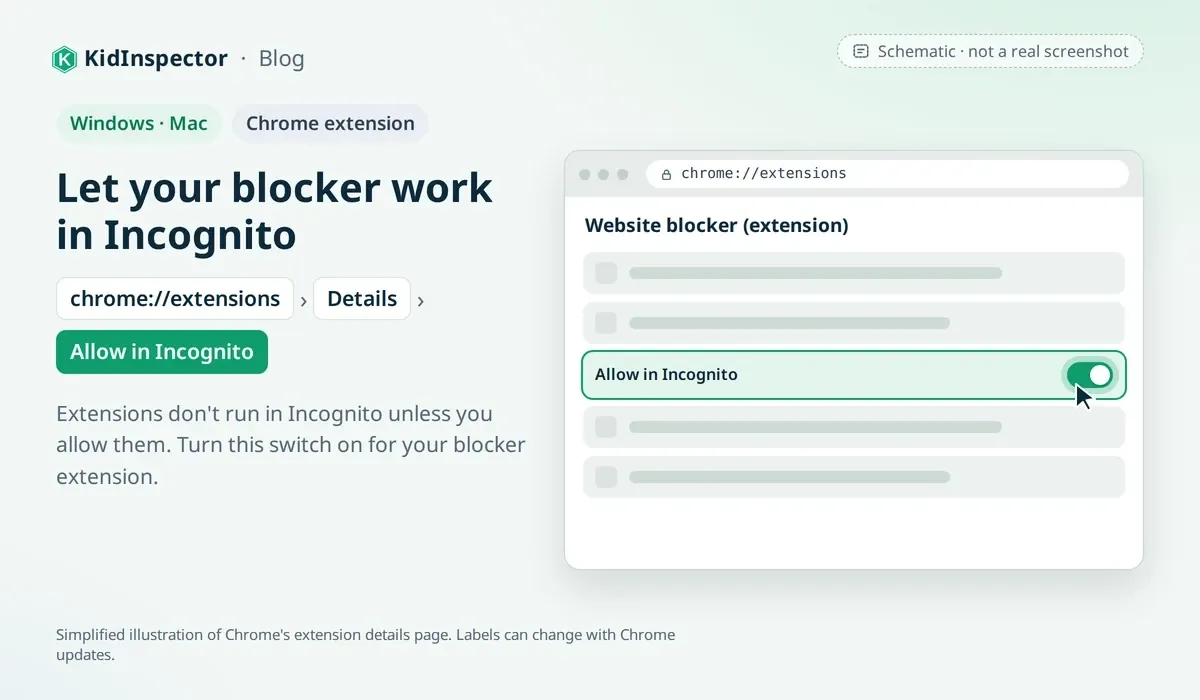
- Go to
chrome://extensions, click Details under the extension, and turn on Allow in Incognito. Extensions don't run in Incognito unless you allow them. - Turn on password protection if the extension offers it.
Limits: An extension works in one Chrome profile only. It doesn't cover other browsers, Guest mode or new profiles, and anyone can remove it from the extensions page.
Method 2: Edit the hosts file
The hosts file is a small text file your computer checks before it asks DNS (the internet's "phone book") for a site's address. Point a site to your own computer, 127.0.0.1, and it won't load in any browser on that computer, Incognito included.
On Windows:
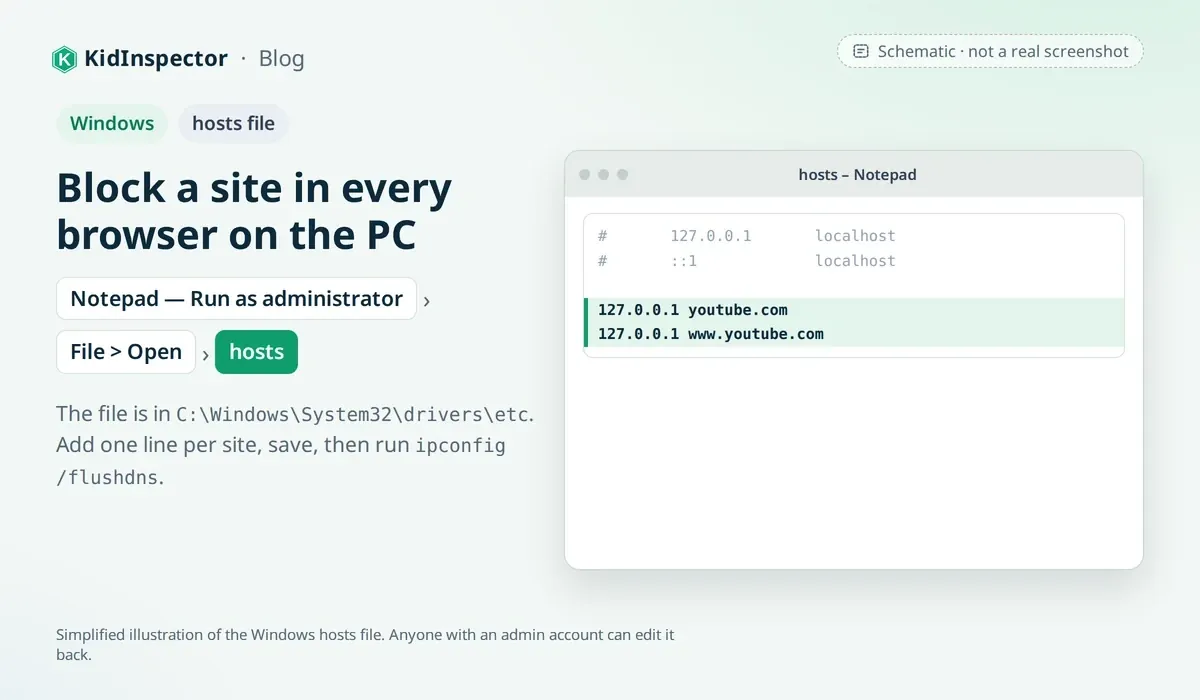
- Click Start, type Notepad, right-click it and choose Run as administrator.
- Choose File > Open, go to
C:\Windows\System32\drivers\etc, set the file type to All Files, and open hosts. - At the bottom, add one line per site, such as
127.0.0.1 youtube.comand127.0.0.1 www.youtube.com. - Save. Then run
ipconfig /flushdnsin Command Prompt and restart Chrome.
On a Mac:
- Open Terminal (Applications > Utilities).
- Type
sudo nano /etc/hosts, press Return, and enter your admin password. Nothing appears as you type. - Add the same kind of lines at the bottom. Press Control+O and Return to save, then Control+X to exit.
- Run
sudo dscacheutil -flushcache; sudo killall -HUP mDNSResponderto clear the DNS cache, then restart Chrome.
Limits: There are no wildcards, so every subdomain needs its own line. Proxy sites and some VPN tools can route around it, and anyone with an admin account can edit it back.
Method 3: Use Chrome policies (URLBlocklist) — for advanced users
Chrome policies are settings IT teams use to manage browsers, and Google documents a registry method for PCs outside a company network. The URL blocklist policy blocks sites in every Chrome profile, Incognito included, and only an admin can change it. Go slowly: a wrong registry edit can cause problems.
On Windows:
- Sign in as an administrator. Press Windows+R, type
regedit, press Enter and click Yes. - Go to
HKEY_LOCAL_MACHINE\SOFTWARE\Policiesand create any missing keys (right-click > New > Key) so the path readsHKLM\SOFTWARE\Policies\Google\Chrome\URLBlocklist. - Select URLBlocklist, right-click the right pane, choose New > String Value, and name it
1. Double-click it and enter a site, such asyoutube.com. Add2,3and so on for more sites. - In Chrome, open
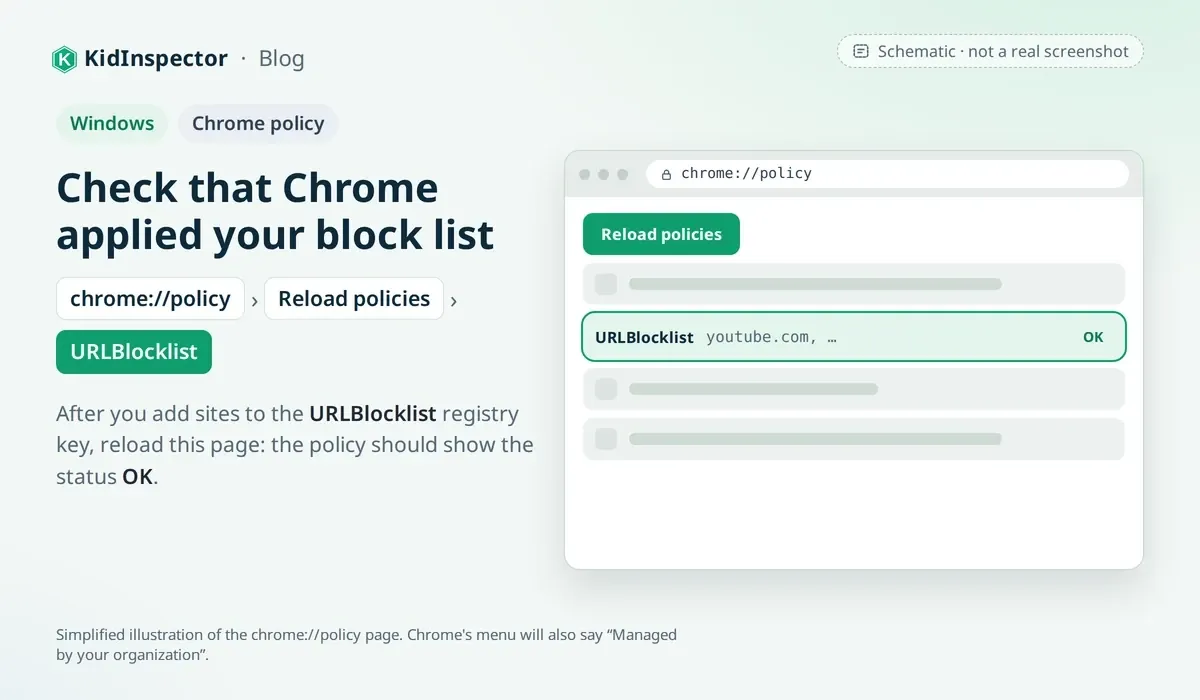
chrome://policyand click Reload policies. Your sites should appear under URLBlocklist.
Blocking youtube.com also covers www.youtube.com and m.youtube.com, and you can list up to 1,000 URLs. Chrome's menu will now say "Managed by your organization," which is expected.
To close common gaps, add these DWORD (32-bit) values in the same Chrome key:
IncognitoModeAvailability=1turns off Incognito.BrowserGuestModeEnabled=0turns off Guest mode.BrowserAddPersonEnabled=0blocks new Chrome profiles.ForceGoogleSafeSearch=1locks SafeSearch on.
On a Mac: Chrome enforces policies only from a configuration profile, a settings file usually installed by IT tools. A quick Terminal command only sets a "recommended" policy meant for testing, not a locked rule. Google's guide to Chrome policies on Mac explains how to build a profile. If that's too much, use Method 4.
Method 4: Use parental control software
Parental control software keeps the rules outside the browser, so they're harder to switch off.
- Free, built-in tools. Microsoft Family Safety's web filter works only in Microsoft Edge, and while it's on, it blocks other browsers, including Chrome.
- Family Link on a computer. Its Chrome filters apply when your child is signed in to Chrome with a supervised account. But on Windows and Mac, a child can sign out or switch browsers.
- A parental control app. KidInspector blocks websites on Windows and macOS where supported and records every attempt to open a blocked site. You manage the rules from one web dashboard.
A note on consent: Parental controls are for your own devices and your children's devices. With older kids, be open: tell them what's blocked or monitored and why.
How to block websites on Chrome for Android
Chrome on Android phones doesn't run extensions (the Chrome Web Store only sends them to your computer). Instead, block sites through your child's Google Account, the phone's DNS setting, or an app.
With Google Family Link
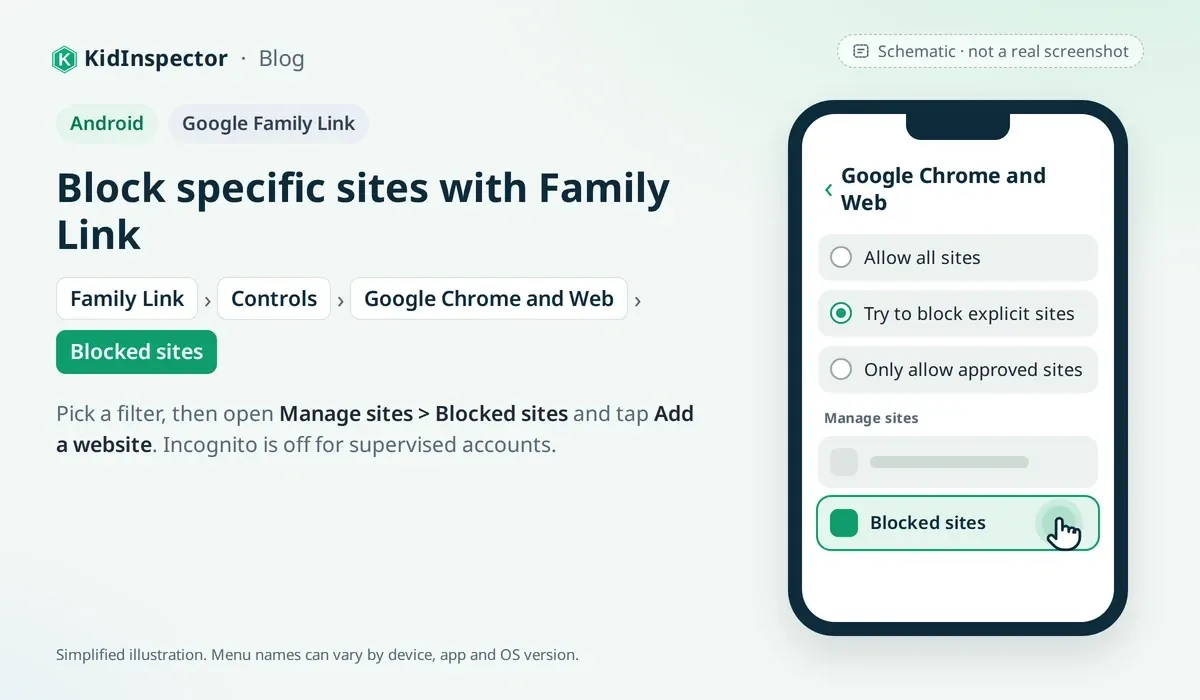
Family Link is Google's free parental control app. It makes your child's Google Account a supervised account that you manage. As of September 2026, the Chrome controls work like this:
- Open the Family Link app and select your child.
- Tap Controls > Google Chrome and Web.
- Pick a filter: Allow all sites, Try to block explicit sites, or Only allow approved sites.
- Under Manage sites, open Blocked sites, tap Add a website, and enter the address.
Incognito is turned off when your child uses Chrome with a supervised account. If they reach a blocked site, they can ask you for access. Google says no filter is perfect, so treat "Try to block explicit sites" as a safety net.
These rules cover Chrome only, so use Family Link's app controls to approve downloads and block extra browsers. Kids under 18 can't stop supervision without your approval.
With Private DNS / family-safe DNS
DNS filtering blocks a site at the address-lookup step, for every app on the phone. Android 9 and later has a Private DNS setting that sends all lookups to a service you choose. A family DNS service works as a content filter for adult sites.
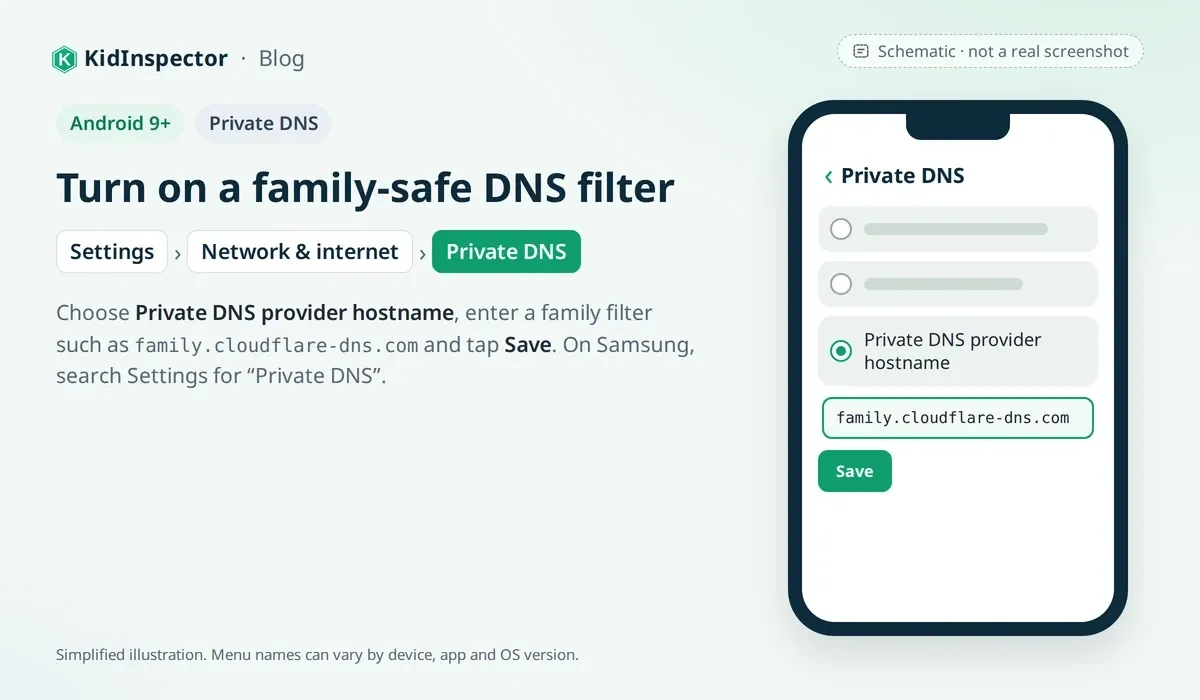
- Open Settings > Network & internet > Private DNS. On some phones it's under Advanced; on Samsung Galaxy phones, it's under Connections > More connection settings.
- Choose Private DNS provider hostname.
- Enter one family filter and tap Save:
family.cloudflare-dns.comblocks malware and adult content.family-filter-dns.cleanbrowsing.orgalso blocks proxy and VPN sites and turns on SafeSearch.family.adguard-dns.comalso blocks ads and turns on Safe Search where possible.
It covers Wi-Fi and mobile data. But these services block whole categories, not your own list, and the setting has no PIN, so check it now and then. CleanBrowsing's filter also blocks mixed-content sites such as Reddit.
With a parental control app
A parental control app can block sites and whole apps, such as the YouTube app, a second browser or a VPN app. KidInspector for Android blocks apps and websites where supported and logs every attempt to open something blocked.
How to block YouTube and other specific sites
YouTube uses several web addresses, so cover all of them when you block YouTube on Chrome:
- Chrome policies or an extension: add
youtube.com,youtu.be(short links) andyoutube-nocookie.com(videos embedded on other sites). - Hosts file: add separate lines for
youtube.com,www.youtube.com,m.youtube.com,youtu.beandwww.youtube-nocookie.com. - Family Link: add
youtube.comandyoutu.beto Blocked sites.
Don't forget the app. On Android, the YouTube app doesn't follow Chrome's rules, so block it in Family Link or your parental control app.
Prefer limits to a full block? Set the ForceYouTubeRestrict policy to 2 to lock Restricted Mode on Strict in Chrome, or use a family DNS such as CleanBrowsing, which switches YouTube to a safer mode. Younger kids can use YouTube Kids instead.
The same steps work for any site, from games to social networks.
Which method is hardest for kids to bypass?
"Needs admin?" means setup requires an administrator password, so a child with a standard account can't change it.
| Method | Works in Incognito | Covers other browsers | Hard for a kid to undo? | Needs admin? | Platforms |
|---|---|---|---|---|---|
| Chrome extension | ⚠️ Only with Allow in Incognito | ❌ One Chrome profile only | ❌ No, it can be removed | ❌ No | Windows, Mac |
| Hosts file | ✅ Yes | ✅ Yes, on that computer | ✅ Yes, with a standard account | ✅ Yes | Windows, Mac |
| Chrome policies (URLBlocklist) | ✅ Yes | ❌ Chrome only; Edge has its own | ✅ Yes, with a standard account | ✅ Yes | Windows; Mac via profile |
| Google Family Link | ✅ Incognito is turned off | ⚠️ Chrome only; you approve other apps | ✅ Yes, ending supervision needs you | ❌ No, your Google Account | Android, Chromebook |
| Private DNS (family DNS) | ✅ Yes | ✅ Yes, the whole phone | ❌ No, it's in Settings | ❌ No | Android 9+ |
| Parental control app (KidInspector) | ✅ Where supported | ✅ Where supported | ✅ Yes, rules live in your dashboard | ⚠️ Depends on the device | Android, Windows, macOS |
The strongest setup uses two layers: one that covers the whole device (hosts file, family DNS or a parental control app) and one that controls Chrome itself (Family Link or policies).
Why blocks fail: Incognito, other browsers, VPN — and how to close the gaps
Most blocks fail for the same few reasons. Here's how to close each gap.
Incognito and Guest windows
Extensions stay off in Incognito unless you allow them, and Guest windows start without your extensions. Fix: turn on Allow in Incognito, or better, switch off Incognito and Guest mode with the Method 3 policies. On Android, Family Link already turns Incognito off.
Other browsers and new profiles
A Chrome-only rule does nothing in Edge, Firefox or a fresh Chrome profile. Fix: add a device-wide layer (hosts file, family DNS or a parental control app) and set BrowserAddPersonEnabled to 0. On Android, approve which apps your child installs.
VPNs, proxies and secure DNS
VPN apps and proxy sites route traffic through another server, which can slip past DNS filters and the hosts file. Chrome's secure DNS setting could also send lookups past your family DNS. Fix:
- Keep app installs in check: Family Link approvals on Android; a standard account and Family Safety's app filters on Windows.
- Add an
ExtensionInstallBlocklistkey next to URLBlocklist with the value1=*, so no new extensions can be added. It also turns off existing ones unless you allow them withExtensionInstallAllowlist. - Choose a family DNS that blocks proxy and VPN sites, such as CleanBrowsing.
- Chrome's secure DNS is unavailable on managed devices or with parental controls on. The string value
DnsOverHttpsMode=offmakes that explicit.
Admin accounts
Every computer method can be undone from an administrator account. Fix: give your child a standard account and keep the admin password to yourself. On a Mac, standard users can still install apps, so app blocking matters more there.
Other networks and devices
A home router filter stops at your front door, and a friend's phone has none of your rules. Fix: filter the device itself (Private DNS works on Wi-Fi and mobile data), and agree on what your child does if something upsetting gets through.
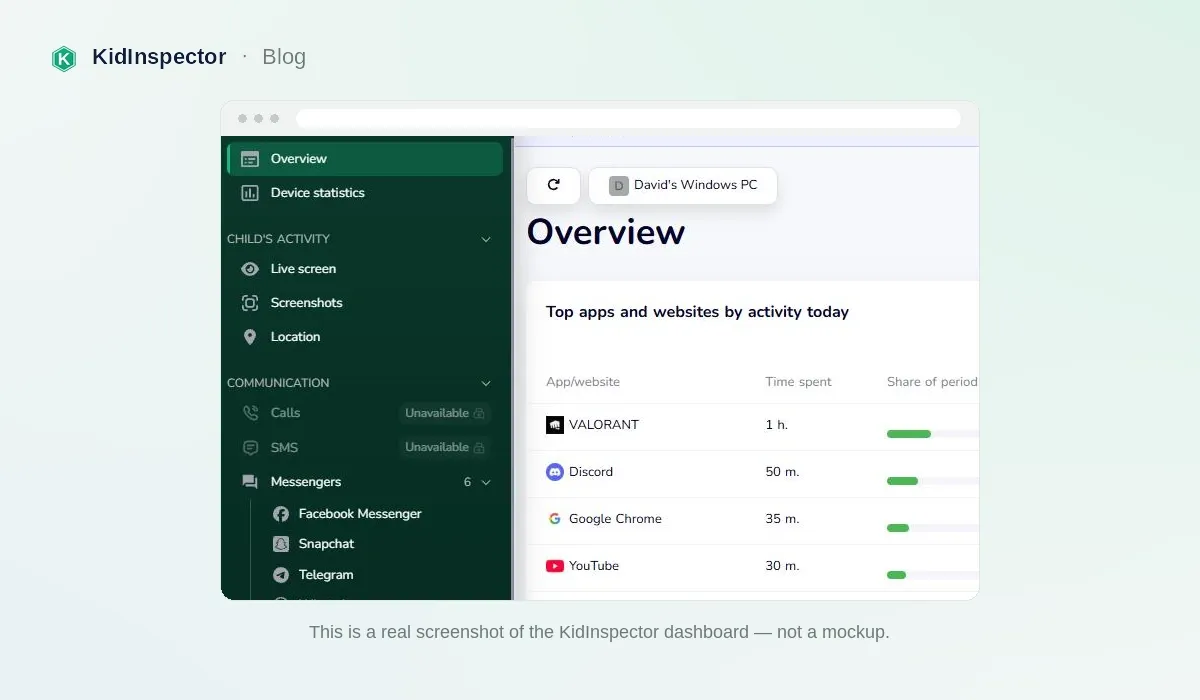
Block sites in every browser at once. Skip the browser-by-browser setup: KidInspector blocks websites on Android, Windows and macOS from one dashboard, where supported, and logs every attempt to open a blocked site. iPhone isn't supported; use Apple's Screen Time there.
Talk with your child about blocked sites
Blocks work best when your child knows about them and why they exist.
- Explain first. Try: "Some sites are built to keep you scrolling, and some aren't made for kids. That's why these are blocked for now."
- Give them a way to ask. Family Link lets them send a request. Otherwise, agree that they can simply come to you.
- Read attempt logs calmly. A few tries on a blocked site are a reason to talk, not proof of bad behavior.
- Loosen rules as they grow. Move from an approved-sites list to a short blocklist.
FAQ
If your child has a Microsoft account, add the site to Blocked sites under Edge in Microsoft Family Safety. You can also use the hosts file. Advanced users can add it to Edge's URLBlocklist policy at HKLM\SOFTWARE\Policies\Microsoft\Edge\URLBlocklist, with the same numbered values as Chrome.
It depends on the method. The hosts file, Chrome policies and family DNS all apply in Incognito. Extensions work there only with Allow in Incognito turned on, and Family Link turns Incognito off for supervised accounts.
Undo the step you used. Delete the line from the hosts file, or edit the URLBlocklist values (keep them numbered 1, 2, 3 in order) and click Reload policies at chrome://policy. In Family Link or an extension, remove the site from the blocked list.
No. KidInspector works on Android, Windows and macOS, not on iPhone. For iPhones, use Apple's built-in Screen Time controls.
Usually, yes. They'll see an error or a "blocked" page instead of the site. Family Link lets them send you a request, and KidInspector logs each attempt to open a blocked site where supported.
One set of rules for every device. Block websites and review blocked attempts on Android, Windows and macOS from one KidInspector dashboard, where supported. iPhone isn't supported.