How to Check Screen Time on Android (Samsung, Pixel, Xiaomi)

To check screen time on Android, open Settings and tap Digital Wellbeing & parental controls (on Samsung it's Digital Wellbeing and parental controls). The dashboard shows today's screen time, a breakdown by app, how often the phone was unlocked and how many notifications came in. Tap the chart to see earlier days.
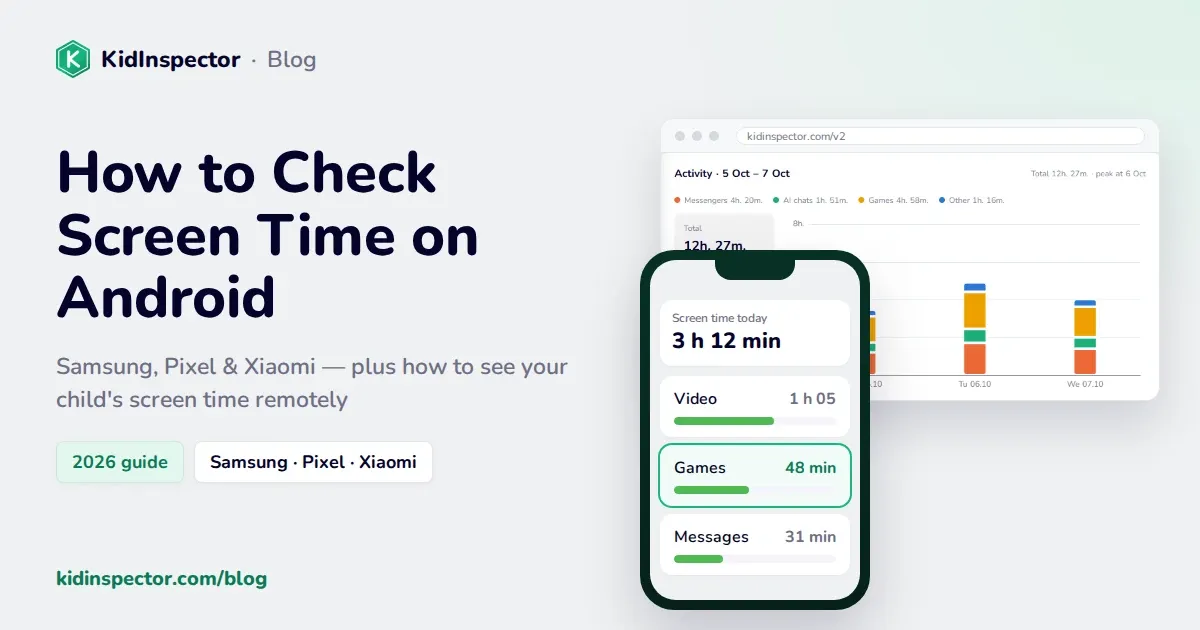
To check screen time on Android, open Settings and tap Digital Wellbeing & parental controls (on Samsung it's Digital Wellbeing and parental controls). The dashboard shows today's screen time, a breakdown by app, how many times the phone was unlocked and how many notifications came in. Tap the chart to see earlier days.
Below you'll find the exact path for Samsung, Pixel, Xiaomi and other brands, how to read the numbers, and how to check your child's screen time without picking up their phone. Menu names are current as of October 2026 and can differ slightly by model and Android version.
Where to find screen time on Android
Almost every Android phone sold today has Google's Digital Wellbeing built in (it arrived with Android 9). The quick version:
- Open Settings.
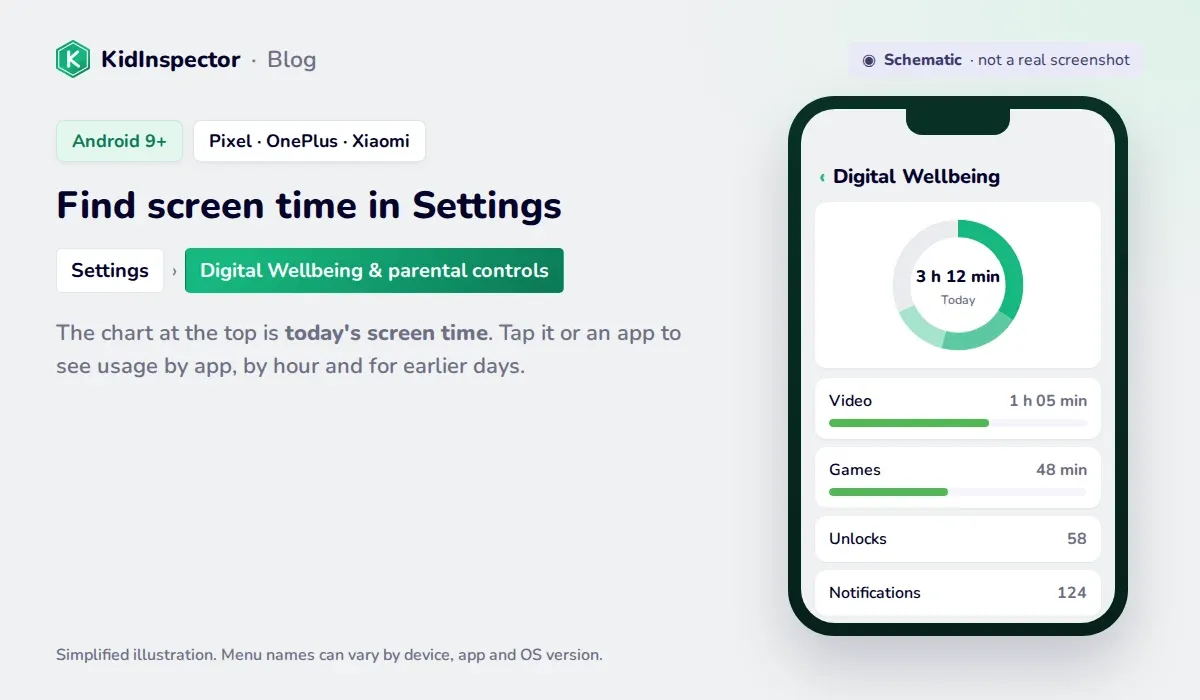
- Tap Digital Wellbeing & parental controls. If you can't find it, type "screen time" or "wellbeing" into the search bar at the top of Settings.
- Look at the circle or bar chart at the top: that's today's total screen time.
- Tap the chart or an app name to see usage by app and by hour, and swipe or tap the arrows to go back to earlier days.
Here's where the screen lives on the most common brands:
| Brand | Path in Settings | What you'll see |
|---|---|---|
| Samsung (One UI) | Settings › Digital Wellbeing and parental controls | Screen time, notifications, unlocks, weekly report, screen time goal, app timers |
| Google Pixel | Settings › Digital Wellbeing & parental controls | Dashboard with screen time, unlocks and notifications; app timers, Bedtime mode, Focus mode |
| Xiaomi, Redmi, POCO (HyperOS) | Settings › Digital Wellbeing & parental controls | Daily screen time by app; app limits (hourglass icon) |
| OnePlus, Motorola, Nokia and most others | Settings › Digital Wellbeing & parental controls | Google's standard Digital Wellbeing dashboard |
Samsung (One UI)
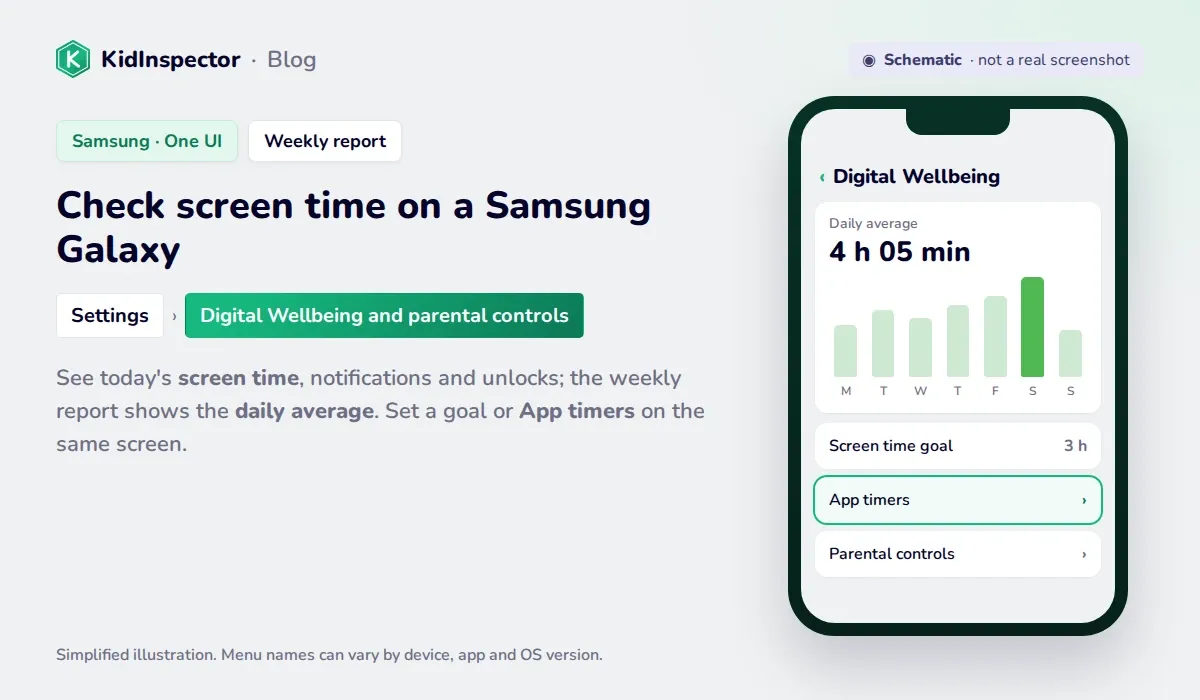
Open Settings › Digital Wellbeing and parental controls. The top of the screen shows today's screen time, the number of notifications and how many times the phone was unlocked. Tap the time to open the full breakdown by app, or tap the weekly report icon to see the daily average for the past week and the most-used apps (Samsung Support).
On the same screen you can set a Screen time goal and App timers. Samsung moved its bedtime settings to Settings › Modes and Routines › Sleep.
Google Pixel
Open Settings › Digital Wellbeing & parental controls. The dashboard lists screen time, times opened and notifications received for each app. If you check it often, turn on Show icon in the app list in Digital Wellbeing settings, and it will appear in your app drawer like a normal app (Google Help).
Xiaomi, OnePlus and other brands
On Xiaomi, Redmi and POCO phones with HyperOS, Xiaomi's own guide points to Settings › Digital Wellbeing & parental controls. Tap the dashboard for daily screen time, then the hourglass icon next to an app to set a limit (Xiaomi Support). Some important system apps can't be limited.
OnePlus, Motorola, Nokia, Sony and most other brands use Google's standard version, so the Pixel steps above work. If your phone shows a "Screen time" item instead, that's the same feature under a different name.
How to read the Digital Wellbeing dashboard (screen time, unlocks, notifications)
The dashboard tracks three things, according to Google:
- Screen time: which apps were on screen and for how long.
- Times opened / unlocks: how often the phone was unlocked and each app was opened.
- Notifications received: how many alerts arrived and from which apps.
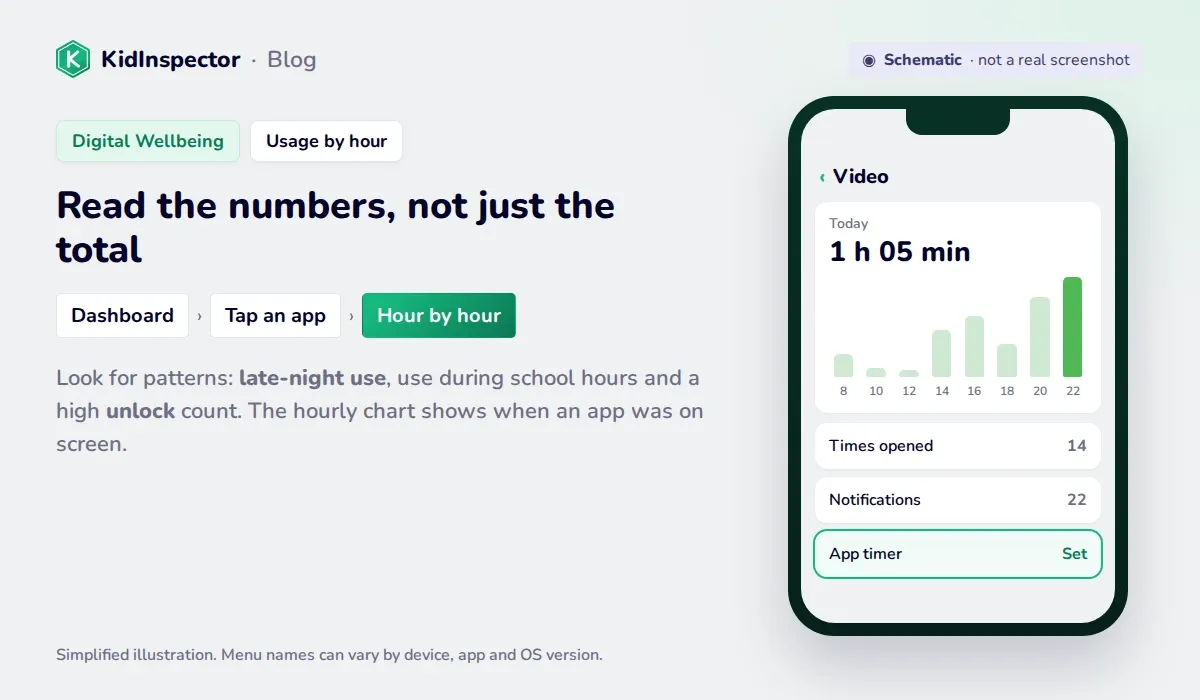
Tap an app to see its usage hour by hour. That's often more useful than the daily total. For a child, look for patterns rather than one big number:
- Late-night use. Activity after bedtime usually matters more than an extra hour in the afternoon.
- School hours. Usage during class time may mean notifications are pulling them in.
- Unlocks. A high unlock count with short sessions often means constant checking rather than one long video.
- The daily average. One heavy weekend day is normal; a steady climb week after week is worth a conversation.
Screen time counts apps that are on screen. Music or a podcast playing with the screen off isn't added to the total.
How to check your child's screen time remotely
Digital Wellbeing only shows data on the phone itself. To check your child's screen time you'd have to pick up their phone, which is awkward for both of you and easy to forget. Two tools let you see it from your own device.
Google Family Link
Family Link is Google's free parental control app. Once your child's phone is supervised:
- Open Family Link on your phone and select your child at the top left.
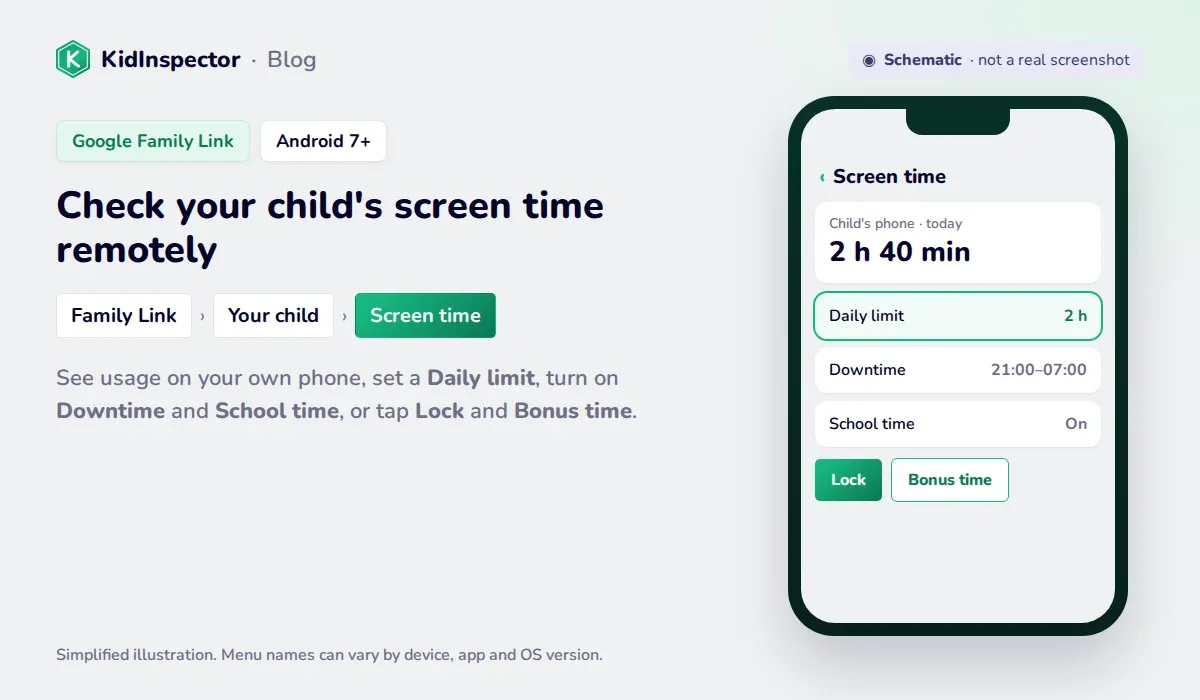
- Tap Screen time at the bottom to see how long each device was used and which apps took the time.
- To add limits, go to Time limits › Daily limit and set hours for each day of the week.
- Under Schedules, turn on Downtime for the night and School time for class hours.
You can also tap Lock to lock the device right away or give Bonus time for one day without changing the regular limit. Daily limits apply to each device separately, work on Android 7 and up and on Chromebooks, and can't be applied to system apps (Family Link Help, schedules).
Parental control apps
Family Link covers the basics on Android. If your family also uses Windows PCs or Macs, or you want more detail than a daily total, a parental control app puts everything in one place.
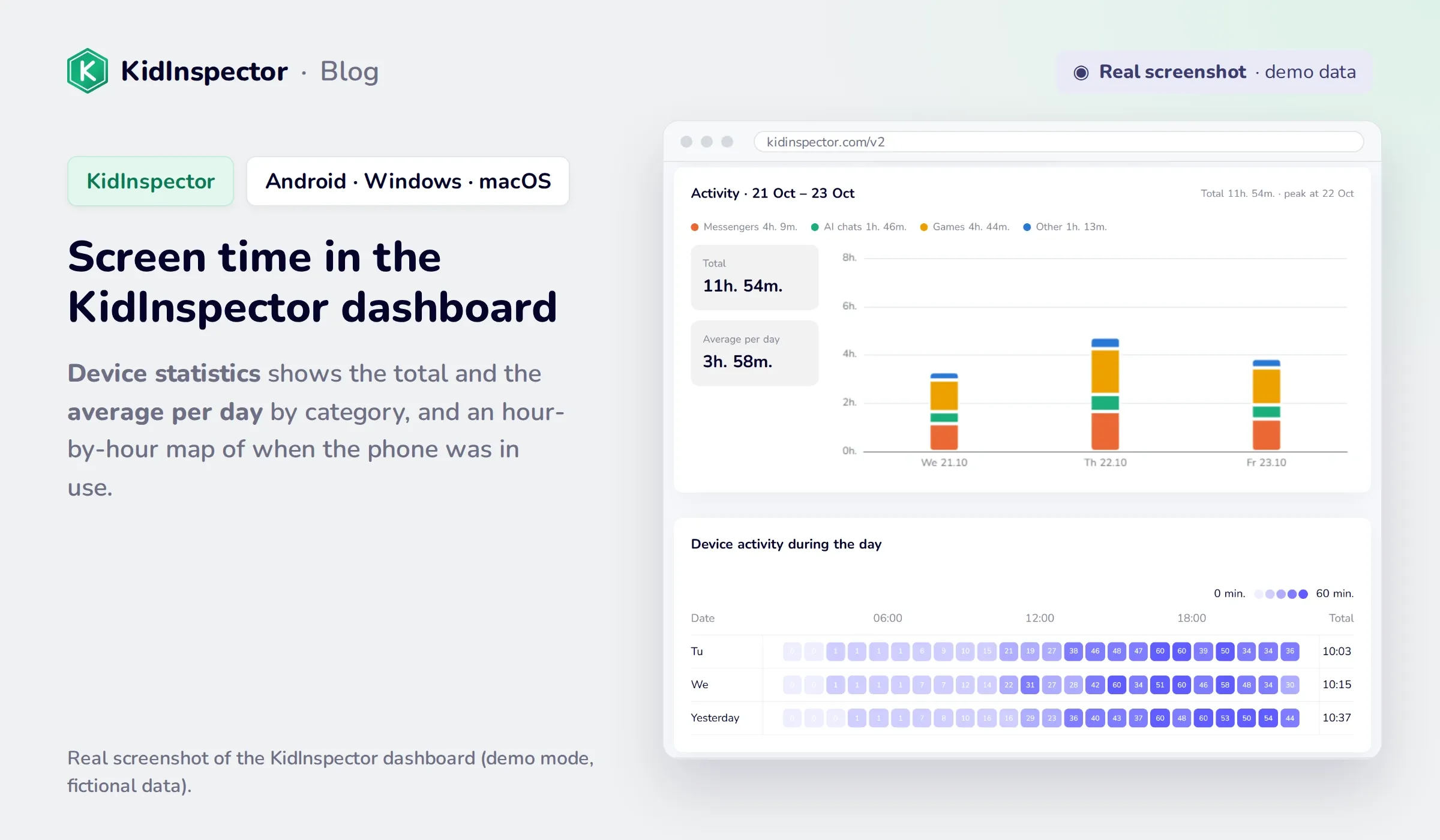
See screen time without picking up their phone. KidInspector shows app usage, device statistics and daily summaries in one web dashboard for Android, Windows and macOS, where supported. Use it on your own devices and your child's, and tell your child it's on. iPhone isn't supported.
How to limit screen time on Android (App timers, Bedtime mode, Focus mode)
Digital Wellbeing also has three built-in ways to cut back. They're quick to set up, and they work best for your own phone or for an older teen who agrees to them.
- App timers. Go to Settings › Digital Wellbeing › App timers (on Samsung, App timers sits on the main Digital Wellbeing screen), tap the timer next to an app, choose a limit and tap OK. When time runs out, the app closes and its icon turns gray until midnight, when the timers reset.
- Bedtime mode. On Pixel and most phones: Digital Wellbeing › Bedtime mode. Set a schedule or turn it on while the phone charges; the screen can switch to grayscale and calls and alerts go quiet. On Samsung, use Modes and Routines › Sleep.
- Focus mode. Digital Wellbeing › Focus mode pauses the apps you pick and hides their notifications, on a schedule or when you tap it. It's handy for homework time.
One catch: anyone who knows the phone can turn these off again in a few taps. For a younger child, set limits from your side with Family Link or a parental control app, which a child can't simply switch off. If the problem is a few distracting websites rather than apps, see how to block websites on Chrome.
How much screen time is healthy by age
For young children, the World Health Organization gives clear limits for sedentary screen time, such as watching TV or videos and playing games (WHO):
| Age | WHO recommendation |
|---|---|
| Under 1 year | No screen time |
| 1 year | No sedentary screen time |
| 2 years | No more than 1 hour a day; less is better |
| 3–4 years | No more than 1 hour a day; less is better |
For school-age kids and teens there's no single magic number. In January 2026 the American Academy of Pediatrics published a new policy statement, "Digital Ecosystems, Children, and Adolescents." Instead of a daily limit for everyone, it asks families to make a family media plan, model healthy habits and think about the "5 Cs": the child, the content, calm, what screens crowd out, and communication (AAP). The AAP's free Family Media Plan tool walks you through one.
In practice, the screen time number is a starting point for a conversation. If sleep, homework, outdoor play and family time are going well, a little more screen time on a weekend isn't a crisis. If one of them is slipping, look at the app breakdown together and agree on a change.
FAQ
It's usually there, just not as an app icon. Look in Settings or search Settings for "wellbeing" or "screen time". To get an icon, turn on Show icon in the app list in Digital Wellbeing settings. A few phones sold without Google services use their own "Screen time" feature instead.
No. Screen time counts apps that are on screen. Audio playing with the screen off isn't added. Navigation counts while the map is on screen.
There's no reset button. App timers reset every day at midnight, and the dashboard keeps only recent history. Clearing the storage of the Digital Wellbeing app in Settings › Apps erases the history on most phones, but it also removes your timers.
Yes. Google Family Link shows your child's screen time in the Family Link app on your phone, and parental control apps like KidInspector show it in a web dashboard. Both need to be set up on your child's phone once, and it's best to tell your child they're on.
It's accurate enough to spot patterns. Small differences between the dashboard, Family Link and other apps are normal because each counts sessions in its own way.
Screen time for every device in one place. See app usage and daily summaries for your child's Android phone, Windows PC and Mac in one KidInspector dashboard, where supported. iPhone isn't supported.