

Roblox Parental Controls in 60 Seconds
- Parents now use a linked parent account. The old Parent PIN is gone; you can manage your child’s settings from your own Roblox account.
- The platform uses age-based account types. Roblox Kids is for ages 5–8, Roblox Select for 9–15, and standard Roblox for older users.
- No age check means no chat. Roblox requires an age check before chat is available, and communication is generally limited by age group.
- Voice chat is 13+ only for age-checked users and may vary by region and game.
- Parents can manage content and communication and, depending on the child’s age, screen time, spending, and individual games.
Is Roblox Safe for Kids in 2026?
Short answer: Roblox has age-based protections, parental controls, chat filtering, and moderation, but no settings can remove every risk. Whether it is appropriate for a particular child depends on their age and maturity, the games and communication features they use, and how the account is configured.
Roblox is a platform of user-created games, or experiences, used by children, teens, and adults. In Q2 2026, the platform reported an average of 123 million daily active users. Among age-checked users, about 35% were under 13, 38% were 13–17, and 27% were adults.
The Main Risks Parents Should Know About

Contact with other users. Chat, friend requests, and voice features can connect children with people they do not know.

Inappropriate content. User-created games vary widely in theme and maturity, and unsuitable content may still appear.

Purchases. Robux, subscriptions, game passes, and limited items can lead to unexpected and excessive spending.
Scams and account theft. “Free Robux,” fake giveaways, phishing links, and unsafe trades can target younger users specifically.
Too much playtime. Many games are designed so there is always one more round, one more reward or one more daily bonus.
Roblox New Rules and Chat Updates in 2026
The platform introduced several major safety changes:
- age checks became required for chat;
- Roblox Kids and Roblox Select launched globally for users under 16;
- chat remains more restricted for younger children and is off by default under 9;
- voice chat remains unavailable under 13;
- filtered chat blocks inappropriate content and attempts to share personal information.
These protections help, but parents still need to review the settings available to their child and adjust them as the child gets older.
What Should Parents Do First?
Start with four basics:
- Enter the Child’s Correct Age

- Link a Parent Account
- Review Content and Communication Settings
- Check Age-Based Time & Spending Controls
It is also worth looking at the games your child actually plays. Settings show what is allowed; a few minutes inside a favorite game can tell you much more about its chat, purchases, and social features.
What Age Is Roblox For? The Platform’s Age Rating Explained
Short answer: The youngest account type, Roblox Kids, is designed for ages 5–8. That minimum age is different from the platform’s store ratings: T for Teen by the ESRB, 13+ in Apple’s US App Store, and Teen on Google Play in the U.S.
Because every game on Roblox is made by users, these ratings describe the platform as a whole. Inside it, each game also carries a content maturity label, which helps determine what your child can access.
The birthday on the account matters because it affects which games, communication features, and settings are available. As children get older, more settings gradually move from parent-managed to teen-managed.
Roblox Age Rating vs. Content Maturity
Roblox’s overall platform rating is not the same as the rating of an individual game. The games use four content maturity labels:
| Label | Examples of content |
|---|---|
| Minimal | Mild violence, light unrealistic blood, mild fear |
| Mild | More frequent mild violence, crude humor, mild fear, heavy unrealistic blood |
| Moderate | Moderate violence, light realistic blood, gambling themes, moderate fear |
| Restricted | Stronger violence, strong language, romantic themes, alcohol, social hangouts/private spaces |
For younger users, the most useful things to check are the account type, content maturity setting, and individual allowed or blocked games.
Roblox Kids and Roblox Select: What They Mean
Roblox Kids is designed for ages 5–8 and Roblox Select for ages 9–15. Users aged 16 and older move to standard Roblox. These are account types, not subscriptions: they determine the default game catalog and safety settings available to younger users.
| Roblox Kids(5–8) | Roblox Select(9–12) | Roblox Select(13–15) | Roblox(16+) | |
|---|---|---|---|---|
| Games | Minimal and Mild | Reviewed catalog, up to Moderate. Games covering sensitive social, political, and religious themes are unavailable by default. Parents can allow them. | Reviewed catalog, up to Moderate | All games except Restricted. Restricted games are available only to users older than 18 after an age check. |
| Game chat (in games) | Off by default; a parent can turn it on for players 5–12 and Trusted Friends | On with players 5–15 and Trusted Friends | On with players 9–17 and Trusted Friends | On with similar age groups |
| Friends chat (Chat tab) | Off | Trusted Friends only | Trusted Friends and friends of a similar age | Friends |
| Game direct chat (one-on-one) | Off; a parent can turn it on | Off; a parent can turn it on | Off by default; a parent can turn it on | Available |
| Voice chat | Not available | Not available | In-game voice off until a parent allows it; voice with Trusted Friends available | Available after an age check |
| Parents can manage | Every setting | Every setting, including screen time and spending | Game blocking and approvals, direct chat | Can still view friends, screen time and spending until 18 |
Parents have the broadest controls for children aged 5–12, including content, communication, screen time, spending, and individual games. From 13 onward, more settings move to the teen, while linked parents retain selected controls and activity insights until 18.
Parents can block individual games and, in some cases, allow a game outside the default catalog if it is not Restricted.
Roblox Age Verification: How the Age Check Works
The platform calls its verification process an age check. Users must complete one before they can use the chat.
There are two main methods:
Facial age estimation
Roblox analyzes facial images and video to estimate age.
Government ID verification
Available to users aged 13 and older.
The platform says images and video used for facial age estimation are deleted after processing. In some regions, parental approval may be required for younger users.
Roblox Chat Age Groups
After an age check, the platform places users into communication age groups:
| Age group | Who they can normally chat with* |
|---|---|
| 5–8 | Nobody (chat is off). If a parent turns it on: players under 13 and Trusted Friends |
| 9–12 | Users under 16 |
| 13–15 | Users aged 9–17 |
| 16–17 | Users aged 13–20 |
| 18–20 | Users aged 16+ |
| 21+ | Users aged 18+ |
*Availability also depends on account settings, region, and parental permissions. Eligible Trusted Friends can communicate outside the normal age ranges.
For children under 9, chat is off by default, and a parent must enable it where available. Without an age check, the in-game chat is unavailable.
Is Roblox Age Verification Safe?
The platform says it deletes verification photos and videos after the age estimate is completed. Also, it does not receive or store biometric data from the facial age-estimation process. Government ID verification is available to users aged 13 and older.
For younger children, it makes sense for a parent to go through the process with them and review the privacy information first. Roblox may also ask a user to complete another age check if it detects a discrepancy in their estimated age.
If the child’s birthday is wrong, a linked parent can correct it once; users aged 13+ can also use ID verification where applicable.
How to Set Up Roblox Parental Controls
 Parent account
 Link child account
 Review controls
To manage your child’s settings remotely, you need your own Roblox account with parent privileges linked to the child’s account. The platform requires the parent to be age-checked as 18 or older.
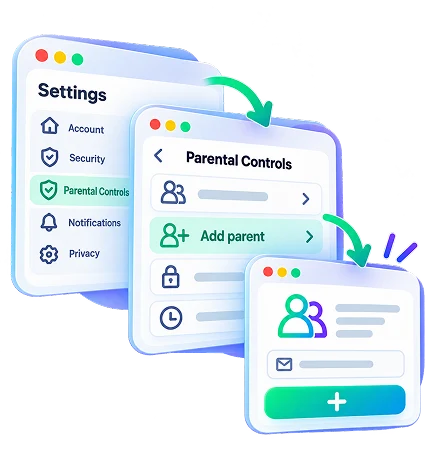
Step 1: Link your parent account
On your child’s Roblox account:
- Open Settings → Parental Controls → Add parent. Enter your email.
- You will receive an invite. Follow it to create your own account or sign in to your existing one.
- Complete the platform’s adult age check with an ID or a credit card.
- Select Agree to link the accounts.
More than one parent can link their own account to the same child.
Step 2: Review the Main Controls
From your own account, open Settings → Parental Controls, select your child, and review:
- Content restrictions — set content maturity and allow or block individual games.
- Communication — manage game chat, direct chat, Friends Chat, and Party features.
- Friends — review, block, or report people on your child’s friends list and manage Trusted Friends.
- Spending — set available monthly limits and purchase notifications.
- Screen time — set a daily limit and view recent usage.
- Privacy — manage settings such as private servers.
Which settings a parent can change depends on the child’s age. We cover the important ones in detail below.
Roblox Parent Login: Where Are the Controls?
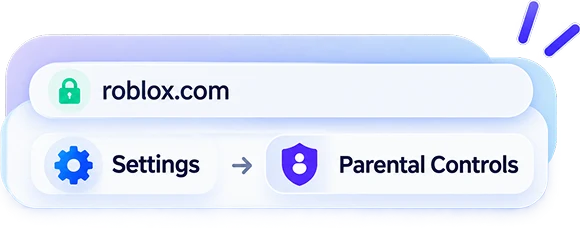
There is no separate Roblox parent login or parental-controls website. Sign in to your own account on Roblox.com or in the mobile app, then open Settings → Parental Controls and select your child.
How to turn off or remove Roblox parental controls
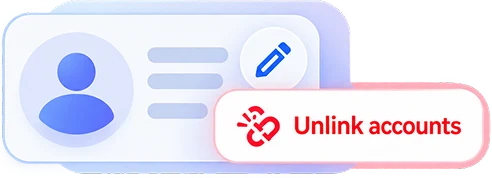
If you later want to unlink the accounts, open the child’s profile in Parental Controls, select the pencil icon, and choose Unlink accounts. Parent accounts are also automatically unlinked when the child turns 18.
Roblox Chat and Voice Chat: What Parents Can Control
Users must now complete an age check before they can use any chat features. After that, access depends on the user’s verified age, region, and communication settings.
Parents can manage communication under Settings → Parental Controls → your child → Settings you Manage → Communication.
| Setting | What it controls |
|---|---|
| Game chat | Text chat with other users inside a game; users under 9 need parental consent |
| Game direct chat | Direct messages to another player inside a game |
| Friends Chat | Chat with Roblox friends outside individual games |
| Party / Group Party | Private groups used to chat and join games together |
| Voice chat | Voice communication for eligible age-checked users aged 13+ |
The platform notes that some games can contain communication systems built separately by their developers, so the standard communication settings do not necessarily control every custom chat feature.
How to Turn Off Roblox Chat
Open your child’s Communication settings and disable the chat options you do not want available, or set their audience to No one, where that option is offered.
Children under 9 already have Game Chat off by default and require parental consent to enable it. Voice chat is not available to users under 13.
Roblox Voice Chat
- Requires an age check
- Available only to users aged 13 or older in supported regions and games

Voice chat requires an age check and is available only to users aged 13 or older in supported regions and games. Phone-number verification alone no longer qualifies a user for voice chat.
Eligible users can also use voice with friends or Trusted Friends depending on their age, settings, and region. Roblox continues to apply its Community Standards to voice communication.
Trusted Friends — Formerly Trusted Connections
In April 2026, Roblox renamed Trusted Connections to Trusted Friends. A Trusted Friend should be someone your child knows in real life. Trusted Friends can chat across age groups, which makes the setting powerful and worth checking. The rules depend on age:
Under 13
Users under 13 need parent approval for each Trusted Friend.
13–17
Teens aged 13–17 cannot add an adult as a Trusted Friend unless the connection is established through a real-life method such as a live QR scan or contact import.
13+
Users aged 13+ may gain access to voice and no-filters text chat with eligible Trusted Friends.
Availability varies by country. If a parent doesn’t approve a Trusted Friend request for children under 13, it will expire after 24 hours.
Are Roblox Chats Filtered?
Yes. Standard chat is filtered for inappropriate content and attempts to share personal information or instructions for moving conversations off-platform. However, communication with Trusted Friends can use fewer filters for some age groups, so parents should understand what changes when approving that status.
Roblox Spending Limits, Purchase History, and Refunds
For children under 13 in most regions, a linked parent can set a monthly spending limit under Parental Controls → Settings You Manage → Spending Restrictions. The limit resets each month and does not cover gift-card redemptions. It may not apply to purchases made through some consoles.
Parents can also choose spending notifications:

All transactions — an alert for every purchase.

High spend alerts — notifications at $100, $250, and $500 in monthly spending, then every ten transactions.

None — no Roblox spending alerts.
When a child turns 13, parent-set spending limits no longer apply, but linked parents can still receive spending notifications if they opt in and view spending insights.
How to Check Roblox Purchase History
In the child’s account, open the Robux balance and select My Transactions. The page shows Robux purchases, virtual-item and game-pass purchases, sales, and other incoming or outgoing Robux activity.
How Roblox Refunds Work
Robux and most virtual-item purchases are generally final and non-refundable, including accidental purchases.
For unauthorized real-money charges, the correct refund route depends on the payment method:

Credit/debit card, PayPal, or Google Play: contact Roblox Support before disputing the charge.

Apple/iTunes, Microsoft Store, Xbox, PlayStation, Meta Quest, Samsung, or Amazon: request the refund from that provider directly.
Roblox Screen Time: How to Check and Limit Playtime
Screen time
7-day view
Understand patterns before setting limits

For children under 13, linked parents can set a daily Roblox time limit. Go to Parental Controls → Screen Time → Manage → Screen Time Limit and choose the daily allowance. Once the limit is reached, the child cannot continue using the platform that day.
At 13, the teen begins managing their own screen-time limit, while linked parents can still view screen-time insights.
How to Check Roblox Playtime
The same Screen Time area shows:
- the child’s seven-day average;
- the top 20 experiences played during the previous week.
This makes the platform’s parental dashboard useful as a basic Roblox playtime tracker, although it focuses on overall use and recent games rather than detailed device-level sessions.
If you need bedtime schedules or limits that apply across other apps as well, use the parental controls built into the child’s device in addition to Roblox’s own daily limit.
How to Block Roblox or Take a Break
Roblox lets parents limit daily playtime and block individual games. If you want to stop access to the platform itself, use parental controls on the child’s device.

Android and Chromebook: Google Family Link can block the Roblox app or set an app limit.

Windows and Xbox: Microsoft Family Safety can restrict apps and games, set schedules, and limit related websites.

iPhone and iPad: Apple Screen Time can restrict apps by age rating, set time allowances and schedules, and block specific websites such as roblox.com.

PlayStation: Family Management provides age restrictions and playtime controls for child accounts.
For a complete break, check both
To fully block Roblox, restrict access to both the app and the website.
Roblox app
App restriction
roblox.com
Website restriction
The exact options vary by device and OS version, so for a complete break, check both the Roblox app and roblox.com rather than assuming restricting one automatically blocks the other.
Roblox Predators and Grooming: What Parents Should Know
Grooming is when someone builds a child’s trust to exploit them. Online grooming or enticement can involve attention or gifts, requests for secrecy or personal information, sexual or inappropriate conversations, or attempts to move communication to another platform.
According to NCMEC data released by the U.S. Senate Judiciary Committee, Roblox submitted more than 65,000 CyberTipline reports involving suspected online child exploitation in 2025. These are reports of suspected incidents — not 65,000 confirmed predators, cases, or victims, but the risk is still real.
Roblox uses automated and human safety systems to detect harmful behavior. In August 2026, the platform said its Sentinel system accounted for nearly 70% of the child-endangerment cases the company detected during the previous 12 months.
Warning Signs to Watch For
A new online friend whose age or identity seems unclear.

Gifts of Robux, items, or game passes from someone met online.
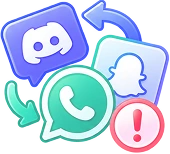
Requests to move the conversation to Discord, Snapchat, WhatsApp, or another service.
Requests for secrecy, photos, video, or personal information.
Pressure, threats, or blackmail.
Unusual new accounts or contacts your child does not want to discuss.
No single sign proves that grooming is taking place. What matters is the pattern and whether someone is trying to gain unusual access, secrecy, or control.
What to Do If Something Happens
Stay calm and keep listening.
A calm response can make it easier for your child to explain what happened and ask for help.
Preserve useful information.
Keep usernames, messages, profile details, dates, and other relevant evidence. Do not immediately delete an account or conversation that may be useful in a report.
Report the specific behavior to Roblox.
The platform recommends using Report Abuse on the particular chat, message, game, or content involved, then blocking the user.
Report suspected exploitation.
In the U.S., parents can use NCMEC’s CyberTipline or call 1-800-THE-LOST. If intimate images taken while the child was under 18 are being shared, Take It Down can help participating platforms detect and remove them without uploading the image itself.
Immediate danger
If there is an immediate danger, contact local emergency services.
Where Roblox Parental Controls Stop
Inside the game
Across the device
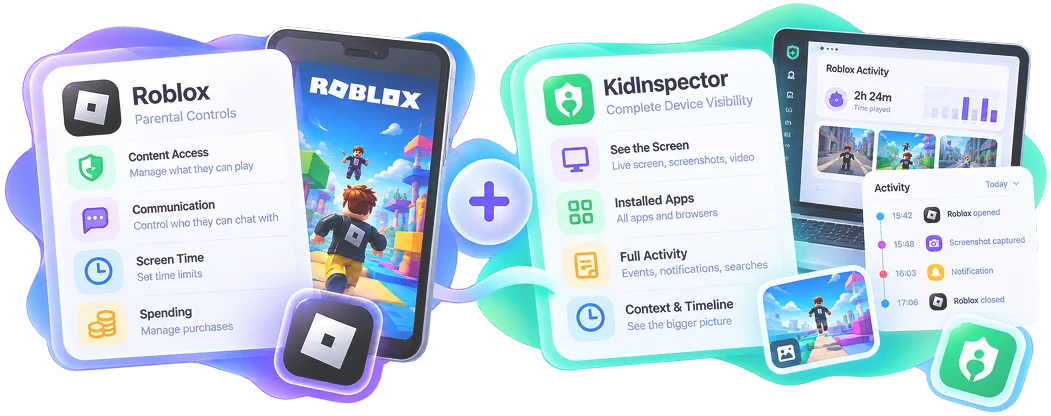
Content · Chat · Spending · Time
Screen · Apps · Activity
The built-in parental controls are the right place to manage content, communication, spending, and screen-time rules inside Roblox. But they don't show you what actually happened on screen, and they don't cover the other apps where a conversation can continue.
For parents who need additional device-level context, a monitoring app can complement those settings rather than replace them.
Which Apps Help Monitor Child Activity on Roblox?
KidInspector monitors supported Android, Windows, and macOS devices and can show:
- when and how long Roblox was used;
- screenshots captured during game sessions;
- Live Screen;
- other apps and activity on the same device;
- searchable screenshot text on Android and macOS;
- controls to block the Roblox app and roblox.com when needed.
Because KidInspector monitors the device rather than a single Roblox account, switching to another login on the same connected device does not stop device monitoring.
It should be used alongside the platform’s own parental controls: Roblox manages what is allowed inside the platform, while KidInspector adds context about what happens on the device.
Roblox Lawsuits, Bans, and Shutdown Rumors
Why Is Roblox Getting Sued?
The platform faces a number of lawsuits and regulatory actions in the United States involving child safety and consumer protection. As of July 30, 2026, Roblox reported lawsuits from 10 U.S. states and Los Angeles County, while settlement agreements had been reached with at least four other states. The claims vary, but several allege inadequate child-safety protections or misrepresentation of the platform’s safety.
For parents, the important point is not the number of lawsuits but the issues behind them: age verification, communication between minors and adults, moderation, and how platforms respond to reports of exploitation.
Is Roblox Getting Banned?
There is no announced nationwide U.S. ban on Roblox as of October 2026. The U.S. lawsuits seek remedies under state and consumer-protection laws; they are not a national shutdown order.
The platform has, however, faced restrictions in other countries. For example:

Türkiye blocked access to it in August 2024.

Egypt ordered Roblox blocked on February 4, 2026.
Remember
Availability can change, so parents outside the U.S. should check current local information rather than relying on old lists of banned countries.
Is Roblox Shutting Down?
No shutdown has been announced. As of October 2026, the platform’s official status page shows its main services as operational. Always check viral claims that Roblox is “shutting down” against the company’s official newsroom or status page.
Roblox Safety Checklist for Parents
Use this as a quick setup and check-in list rather than trying to change every setting at once.
Link your own Roblox account with parent privileges.
Make sure your child’s birthday is correct and complete any age check together.
Review the content maturity level and block games you do not want available.
Check chat, direct chat, Friends Chat, Party, and voice settings.
Review your child’s friends and approve Trusted Friends carefully.
Set a monthly spending limit and spending notifications where available.
Set a daily game time limit and use device-level controls for bedtime or broader screen-time rules.
Turn on 2-step verification and teach your child not to share passwords or verification codes.
Agree on a simple rule for uncomfortable contact: the child should bring requests for secrecy, gifts, photos, or moving to another app to you.
Revisit the settings as your child gets older because Roblox changes which controls belong to the parent and which move to the teen.
Roblox Parental Controls: Frequently Asked Questions
Yes. A linked account with parent privileges can manage eligible settings such as content restrictions, communication, screen time, spending, privacy, and individual allowed or blocked games. Which controls are available depends on the child’s age and region.
There is no separate Roblox parental controls login or Roblox parent login site. Sign in to your own account on Roblox.com or in the mobile app, open Settings → Parental Controls, and select your linked child.
For eligible child accounts, yes. Open Parental Controls → Screen Time → Manage → Screen Time Limit and choose a daily limit. The platform also shows a seven-day screen-time average and the child’s top 20 experiences from the previous week.
Open the account’s Privacy settings and choose Delete under Account data, deactivation & deletion. Roblox requires a verified email address and will verify the user’s identity before completing the request. If you cannot access the account, the platform directs users to its support form.
The platform does not generally refund ordinary virtual-item purchases simply because an item is no longer wanted. For unauthorized real-money charges, the refund route depends on how the purchase was made. Credit/debit card, PayPal, and Google Play charges should normally be reported to Roblox Support first; Apple, Microsoft/Xbox, PlayStation, Meta Quest, Samsung, and Amazon purchases must be handled through those providers.
A linked parent can open Parental Controls → Screen Time → Manage to see the child’s seven-day average and top games from the previous week. Teens aged 13 and older can view their own screen-time information as well.
No shutdown has been announced as of October 2026. If you see claims that Roblox is closing on a particular date, check the platform’s official status page or newsroom rather than relying on social-media posts.
There is no announced nationwide U.S. ban on the platform. It does face lawsuits and regulatory scrutiny, while access has been restricted in some other countries. Because this can change, check current official or local sources for your region.
Sources
This guide was reviewed against current documentation in October 2026. Roblox regularly changes its safety features, age rules, and menu structure, so some options may vary by age, region, device, or later updates.
- Roblox — Parental Controls Overview
- Roblox — Parental Controls FAQ
- Roblox — What Are Roblox Kids and Roblox Select?
- Roblox — Understanding Age Checks
- Roblox — Safety Features: Chat, Privacy & Filtering
- Roblox — Managing Screen Time
- Roblox — Monthly Spending Limits
- Roblox — Unauthorized Charges & Refund Requests
- Roblox — Account Deactivation and Deletion
- Roblox — Open-Source Safety Models and Sentinel
Additional primary references used for current safety and legal information include NCMEC, the U.S. Senate Judiciary Committee, Roblox’s SEC filings, and Roblox’s official status page.