
Roblox Parental Control App for Safer Gaming
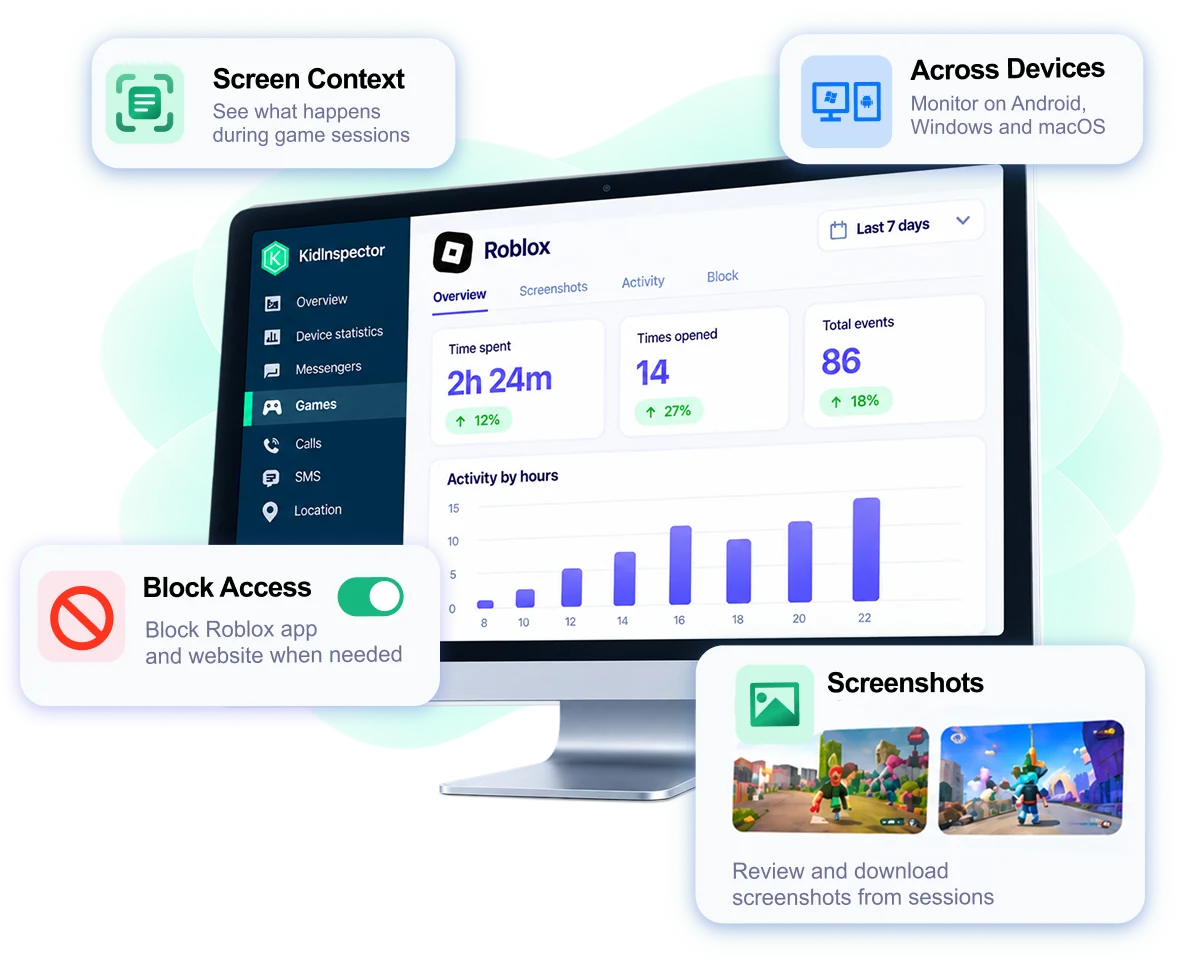
Roblox can be part of your child’s day on more than one device. KidInspector helps you see how long the game is used, what appears on screen, and what happens around each session — while letting you view activity live, block access when needed, and keep monitoring the device even if the Roblox account changes.
See More Than Playtime
Knowing that your child spent two hours in the game is useful. Sometimes, though, you need more context about what happened during that time.
KidInspector brings Roblox activity together in a dedicated dashboard section, so you can review the most important information without searching through unrelated device reports.
Activity at a Glance
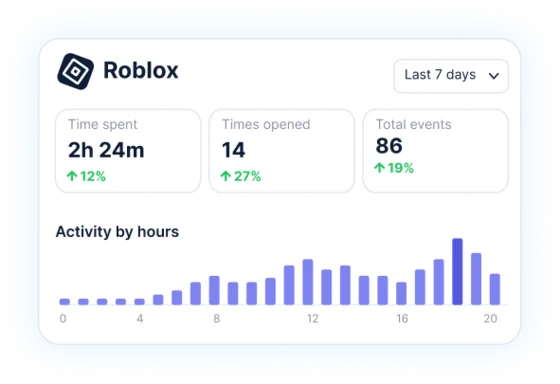
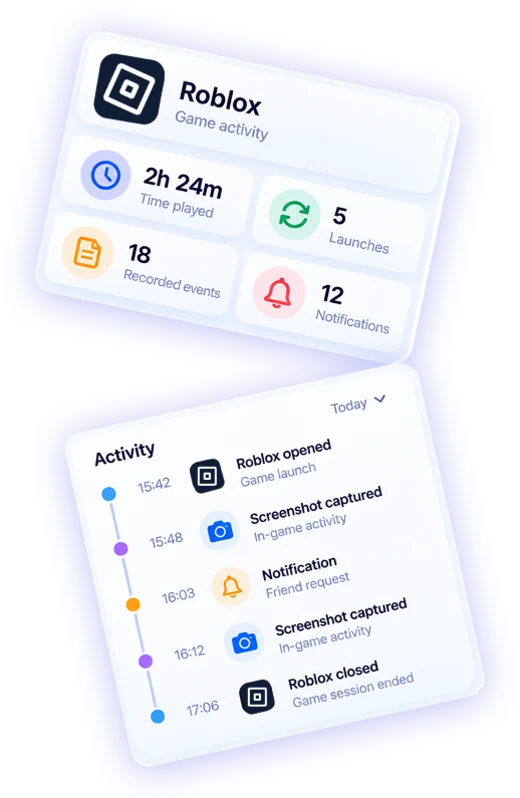
See how long Roblox was used during the selected period, how many times it was opened, the number of recorded events, and when activity took place throughout the day. Spot patterns such as late-night gaming.
Search Text in Screenshots
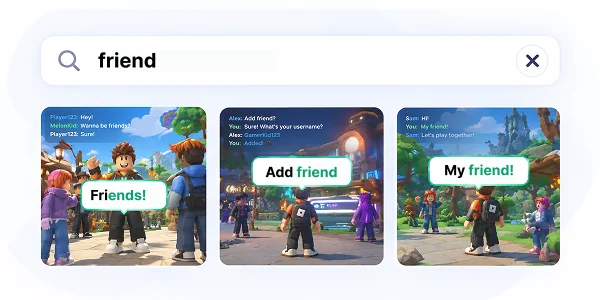
KidInspector reads text in screenshots and lets you search captured images for specific words or phrases. You can look for a username, a phrase your child mentioned, or other text.
See Conversations as They Appeared on Screen
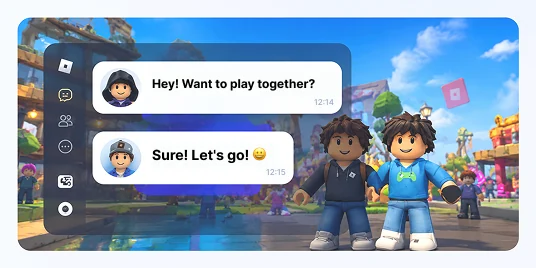
When a chat is visible on screen, a screenshot may capture messages from both sides of the conversation.
Screenshots from Game Sessions
Review and download screenshots to see the games your child joins, conversations that appear on screen, and other captured content.
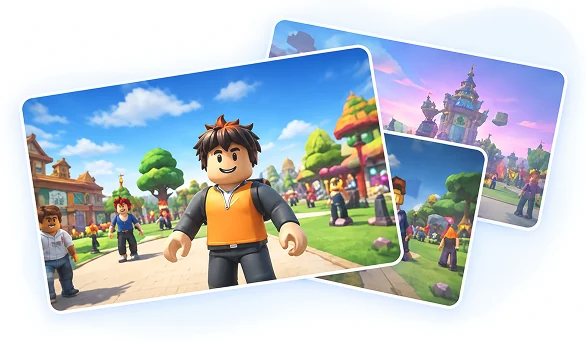
How KidInspector Helps Parents Monitor Roblox
Roblox parental controls are useful for managing what happens inside the game. KidInspector adds another layer: visibility into the device your child actually uses.
Your Child May Play on More Than One Device
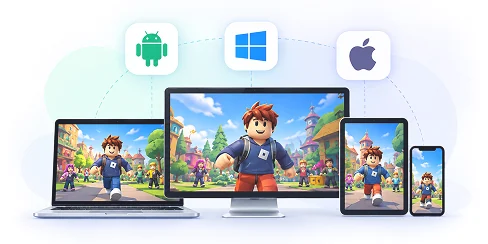
Your child may play Roblox on an Android phone or tablet, then continue later on a Windows PC or Mac.
With KidInspector, you don’t need a separate Roblox monitoring app for each platform. You can connect supported Windows, Mac, and Android devices to the same account and review their activity from one parent dashboard.
Switching Accounts Doesn’t Stop Device Monitoring
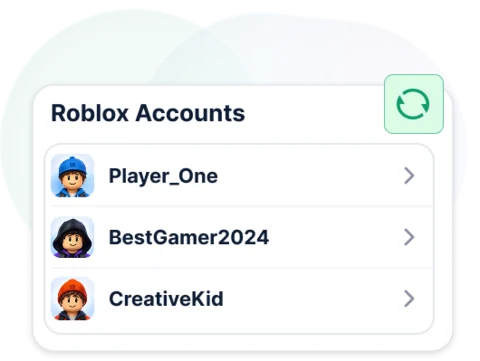
KidInspector does not depend on one Roblox login. If your child switches to another account on the same connected device, monitoring continues because our app tracks the device rather than a single login.
Usage Numbers Don’t Always Tell the Whole Story
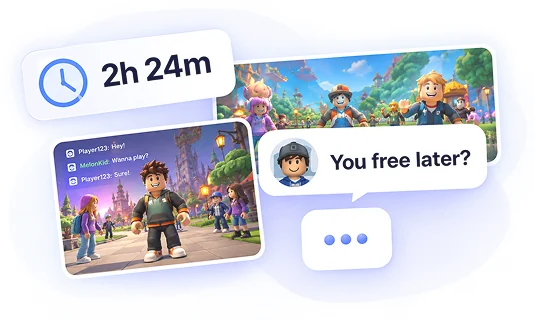
Playtime tells you how long Roblox was used. Screenshots, events, and Live Screen can help explain what was happening.
That extra context can be useful when your child mentions an uncomfortable conversation, unusual game activity, or something you want to understand better before discussing it with them.
Set a Boundary When You Need One
Sometimes monitoring is not enough, and it is time for a break.
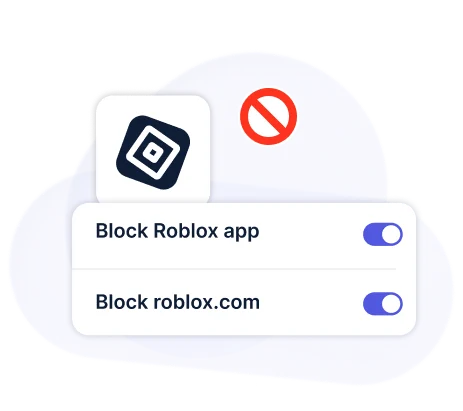
KidInspector can block the Roblox application and restrict access to roblox.com from supported browsers. If your child tries to open the blocked app or website, the attempt can appear in your dashboard activity.
Roblox Monitoring Availability
Activity from each connected device appears in the dedicated section of the dashboard, where you can see:
- how long the game was played;
- how many times it was opened;
- total recorded events;
- screenshots;
- notifications and other related activity in chronological order.
On all supported platforms, KidInspector can also read text in screenshots, so you can search captured images for specific words or phrases.
You can block both the Roblox app and website on all supported platforms.
Supported Devices
- Android phones and tablets
- Windows computers
- macOS devices
All connected family devices appear in the same dashboard, so you can review activity from your child’s phone, tablet, or computer in one place.
Not Supported
 iPhone
 iPad
iPad Chromebook
 Xbox
Xbox PlayStation
See Roblox in the Context of the Whole Device
Sometimes the game is only part of the story. Your child may switch between Roblox, a browser, and other apps, or continue a conversation on Discord on the same device.
KidInspector gives you that wider context, helping you understand how the game fits into the rest of their device activity.
View the Screen Live
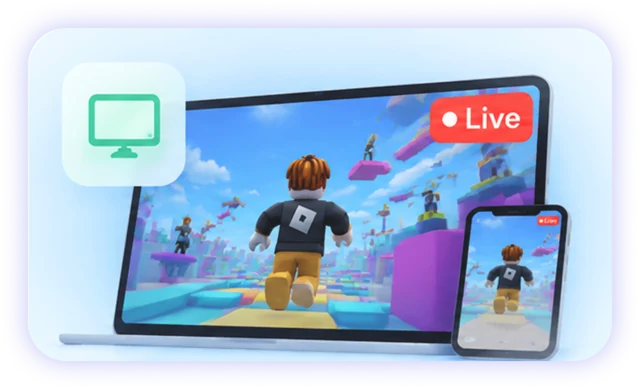
If your child is currently playing Roblox, you can open Live Screen for a real-time view. Live Screen is available on Android, Windows, and macOS.
Check Installed Apps
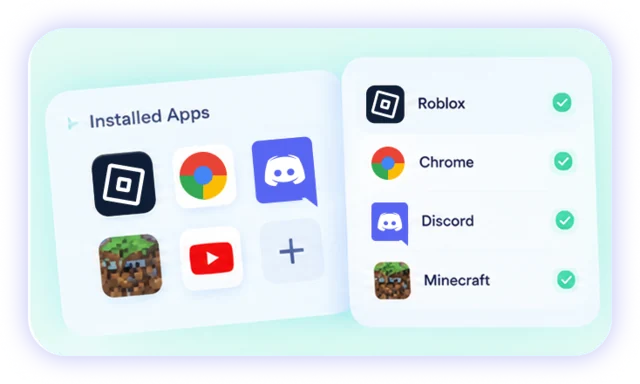
Review messengers, VPNs, browsers, and other applications installed on the connected device. This can help you understand what other tools and apps are available alongside Roblox.
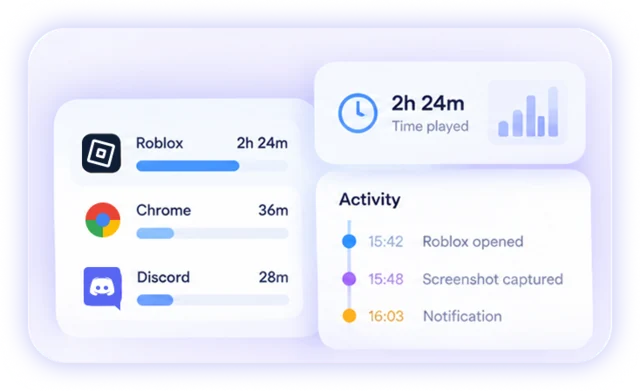
Review Other Device Activity
Browser activity, screenshots, notifications, messenger activity, and other reports can provide additional context when you are concerned about your child’s activity outside the game.
Best Together: Roblox Settings + KidInspector
Roblox’s own parental controls manage settings inside the game, including content access, communication, spending, and screen-time rules.
KidInspector does not replace those settings.
Instead, it helps parents understand how Roblox fits into their child’s wider device activity — including actual usage time, screenshots, events, other installed apps, and activity across multiple supported devices.
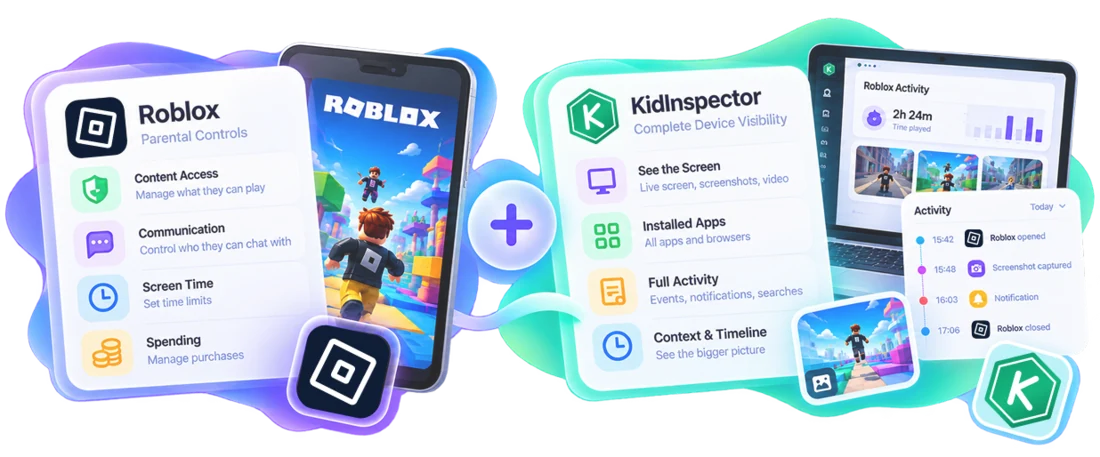
| What you need | Roblox settings | KidInspector |
|---|---|---|
| Limits: content, chat, spending, daily time | Yes | No, set them in Roblox |
| When and how long Roblox is used | Weekly summary | When and for how long |
| What was on screen | No | Screenshots |
| Search text seen on screen | No | Android, macOS, Windows |
| Other apps (Discord, VPNs) | No | Yes |
| Block Roblox completely | No | App and website: all supported platforms |
Responsible Use of Roblox Monitoring
KidInspector can reveal private conversations and other sensitive information, so parental monitoring should be used thoughtfully.
A screenshot or activity event may show only part of what happened. If something concerns you, use the information as context rather than assuming that a single image tells the whole story.
Where appropriate, explain to your child what you monitor and why. Clear rules and open conversations can make monitoring part of family safety rather than a replacement for trust.

Responsible Monitoring Only
Do not use KidInspector to monitor another adult without authorization or for any unlawful purpose. Always follow the privacy and consent laws that apply where you live.

Frequently Asked Questions
KidInspector does not connect directly to Roblox or download messages from the platform.
Instead, screenshots can capture conversations that are visible on screen at the moment they are taken. This may include messages from both your child and other players, giving you more context about the conversation.
On Android and macOS, you can also search recognized text in screenshots.
Switching accounts does not disconnect a monitored device from KidInspector.
The app monitors activity on the connected device rather than relying on one Roblox account. Monitoring continues because the connected device remains the same, even if the game account changes.
Yes, as long as both devices use supported platforms.
KidInspector supports Android, Windows, and macOS, so you can connect your child’s supported phone, tablet, or computer to the same parent account and review activity from one dashboard.
Yes.
KidInspector can block the game on Android, Windows, and macOS and can also block access to roblox.com on supported browsers.
You can remove the block later when you decide it is time to allow access again.
Roblox parental controls manage settings within the game itself. KidInspector monitors the connected device and provides additional context through playtime data, screenshots, recorded events, Live Screen, and activity outside the game.
The two tools serve different purposes but the same goal and can be used together.
No. The app currently supports Android, Windows, and macOS devices.
Yes. The installed apps list can show applications on the connected device, including Discord and VPN clients. App activity reports can also help you see which applications are being used.
Set the daily limit in Roblox's own parental controls. KidInspector shows when and how long the child plays the game. You can block access from the dashboard when needed.
Understand How Roblox Fits Into Your Child’s Digital Life
See how Roblox is used with KidInspector: review captured screen activity, follow related events, and block access when needed — across your child’s supported Android, Windows, and Mac devices.